
In a guided course, an AI teacher welcomes you before the first lesson. If the course has opening questions, answer them on the welcome screen. The teacher then joins the tutor conversation and can introduce what comes next.
Select Skip to continue past an introduction. After a second skip, you can choose to stop these introductions for yourself in this course. You can still use tutor chat.
On desktop, the tutor opens beside your lesson. On mobile, your lesson opens with the tutor input at the bottom.
Send a question to open the mobile conversation. Select Back or X to return to your lesson. Your conversation and unsent question remain available.
Voice stays off until you select Start Voice Call. Starting a call on mobile keeps your lesson visible.
Ask a question
- Type a question in the chat input.
- Select the send button.
- Read the response and ask a follow-up.
For example: “Give me a welcome-call goal with a baseline, target, deadline, and named owner.”
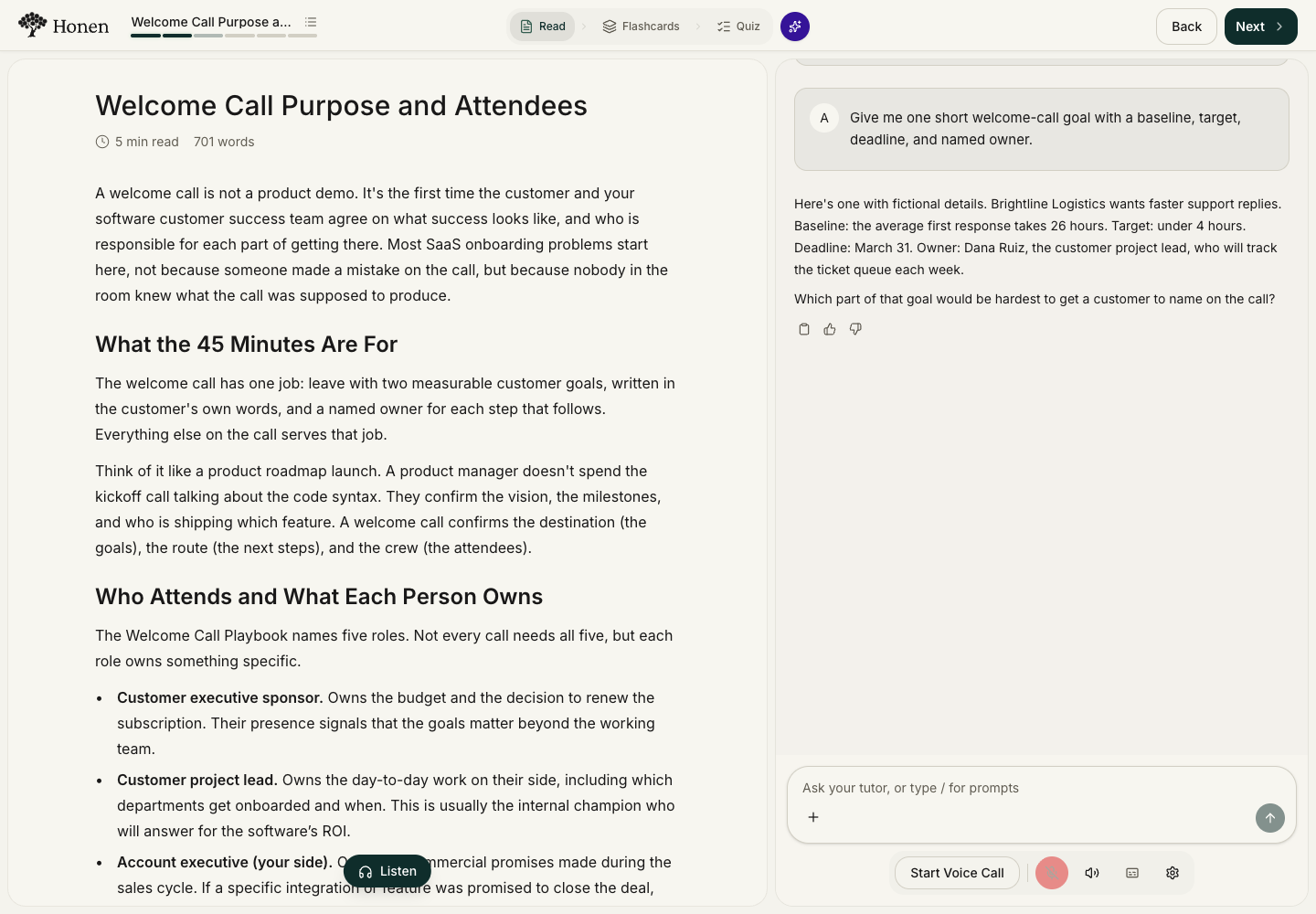
The tutor uses the current lesson and activity state, including visible cards, questions, slides, and project progress. Page changes appear in the conversation while the tutor is connected.
Replies appear as they are generated. The tutor can use the course outline to connect your question to other topics. Course search settings control which lesson content it can retrieve.
For projects, it can use instructions, available work, and shared session progress. Embedded simulations and unsaved external editor content may not expose every detail. Attach a screenshot or describe what you see when needed.
Your course uses one saved conversation. Return to the course to see earlier messages. Long conversations use a summary for context; visible messages remain saved.
Check important procedures against the course's approved source material.
Open the course editor
If you have edit access, ask the tutor to open edit mode or change the current activity. The tutor takes you to that reading, activity, project, or test in the course editor. For a personal practice topic, it opens course management instead. Opening the editor does not change course content. Requests to explain an answer differently stay in chat.
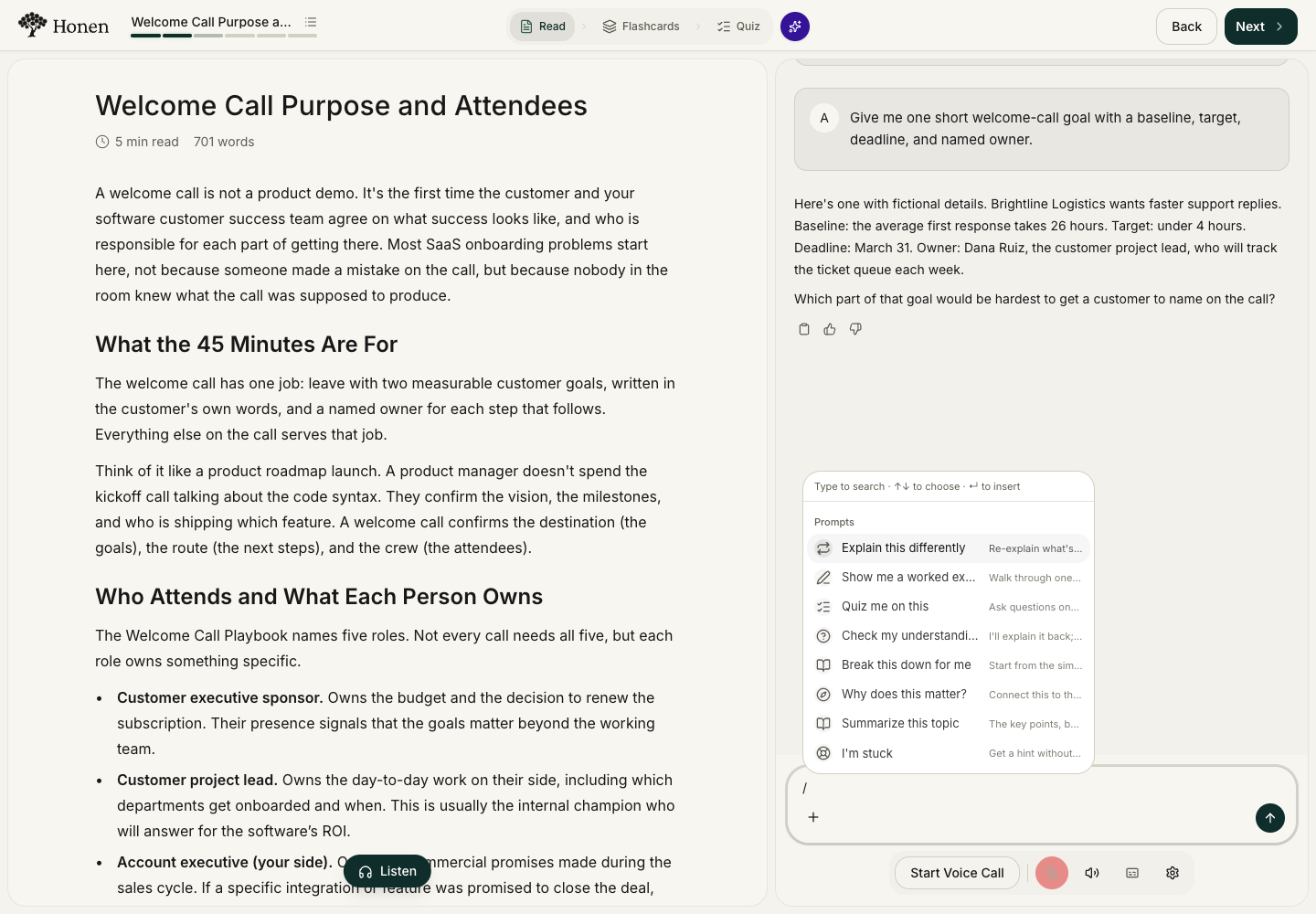
Use a suggested prompt
- Type / in the chat input.
- Select a prompt, such as Show me a worked example or Check my understanding.
- Review the inserted request.
- Send the message.
Add an image
Select + below the input to choose a file. You can also paste an image or drag it into the chat.
Add a question about the image, then send the message. Attachment access follows your course permissions. Attachments are unavailable during an active test.
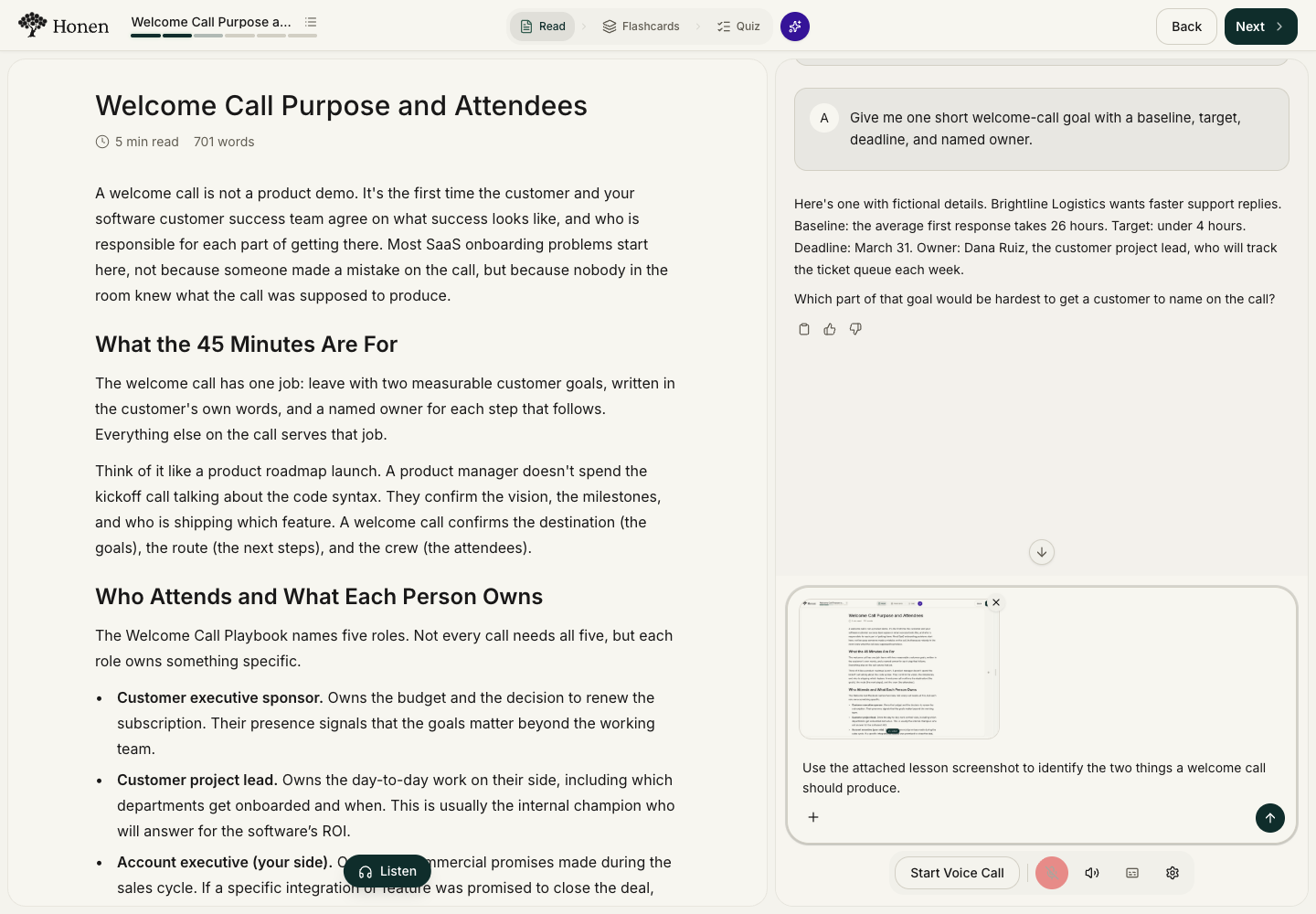
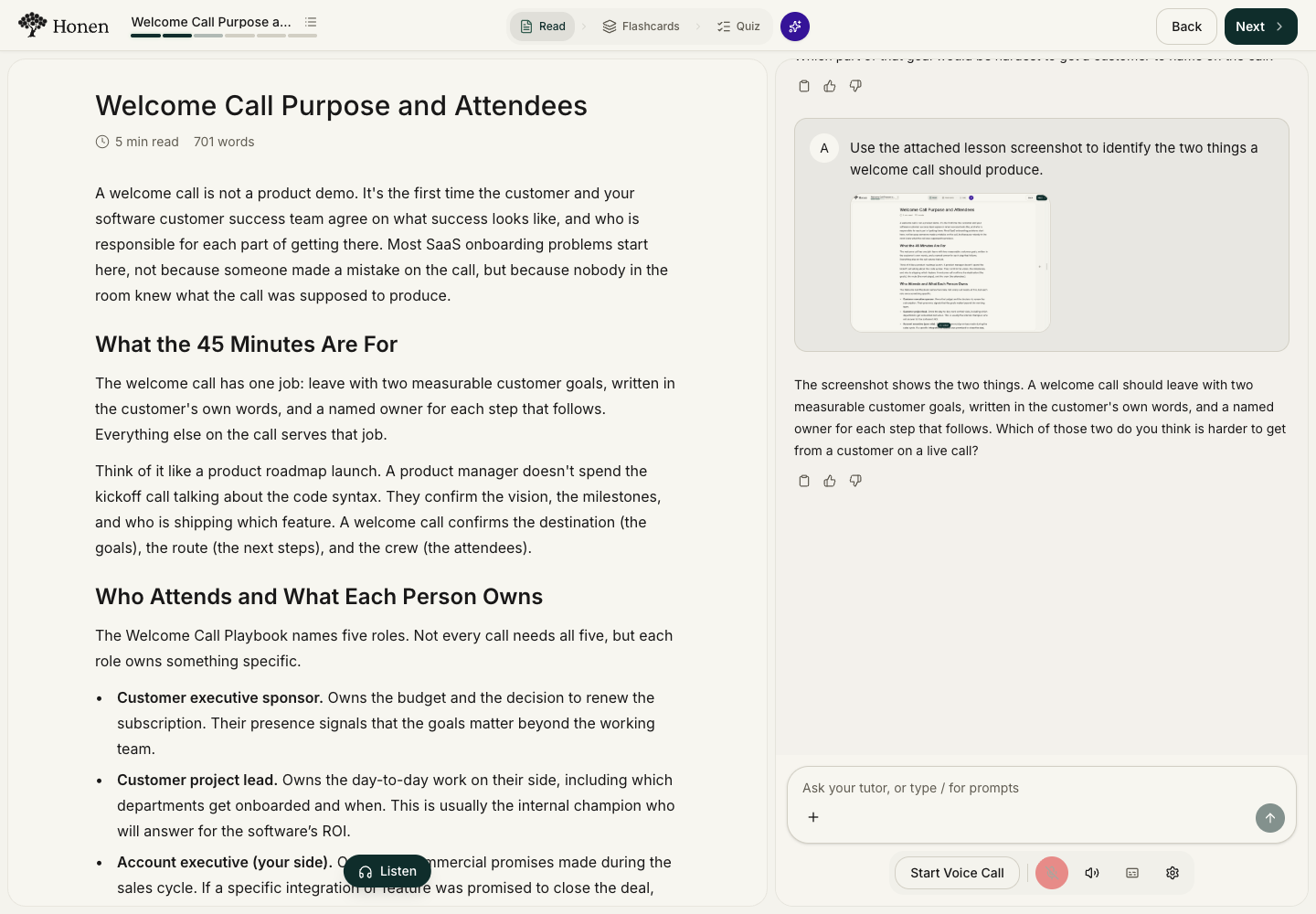
The saved message retains the image. The tutor can use it alongside the current lesson context.
Use voice
- Select Start Voice Call below the input.
- Allow microphone access when your browser asks.
- Use the microphone button to mute your input.
- Use the audio button to mute the tutor.
- Select End voice call to return to text chat.
The call controls also include pause, captions, volume, and device settings. Ending a call keeps the chat available.
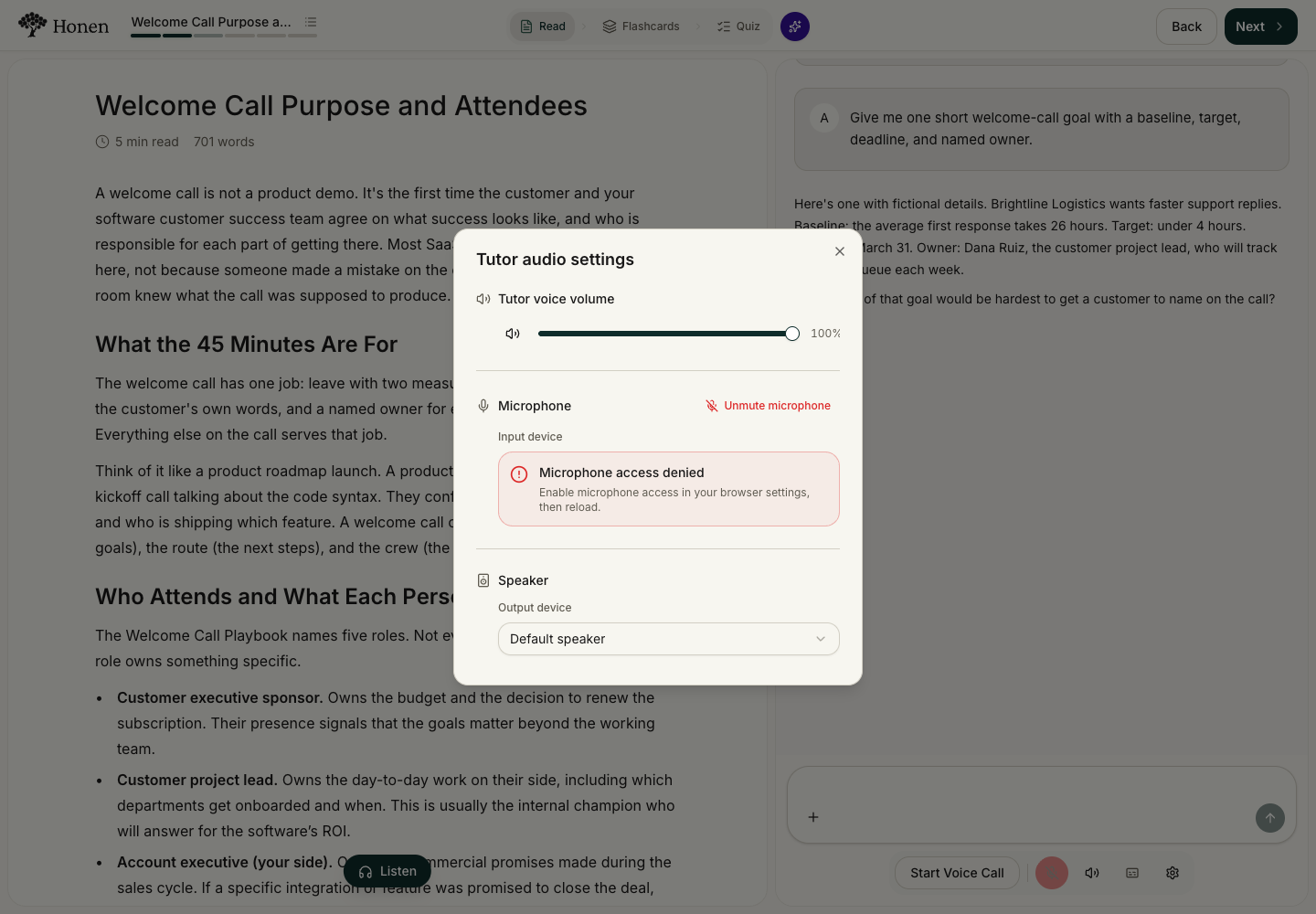
Open Tutor settings to check voice volume and microphone or speaker devices. If microphone access is denied, enable it in your browser settings, then reload. Text chat works without microphone access.
Make room for the lesson
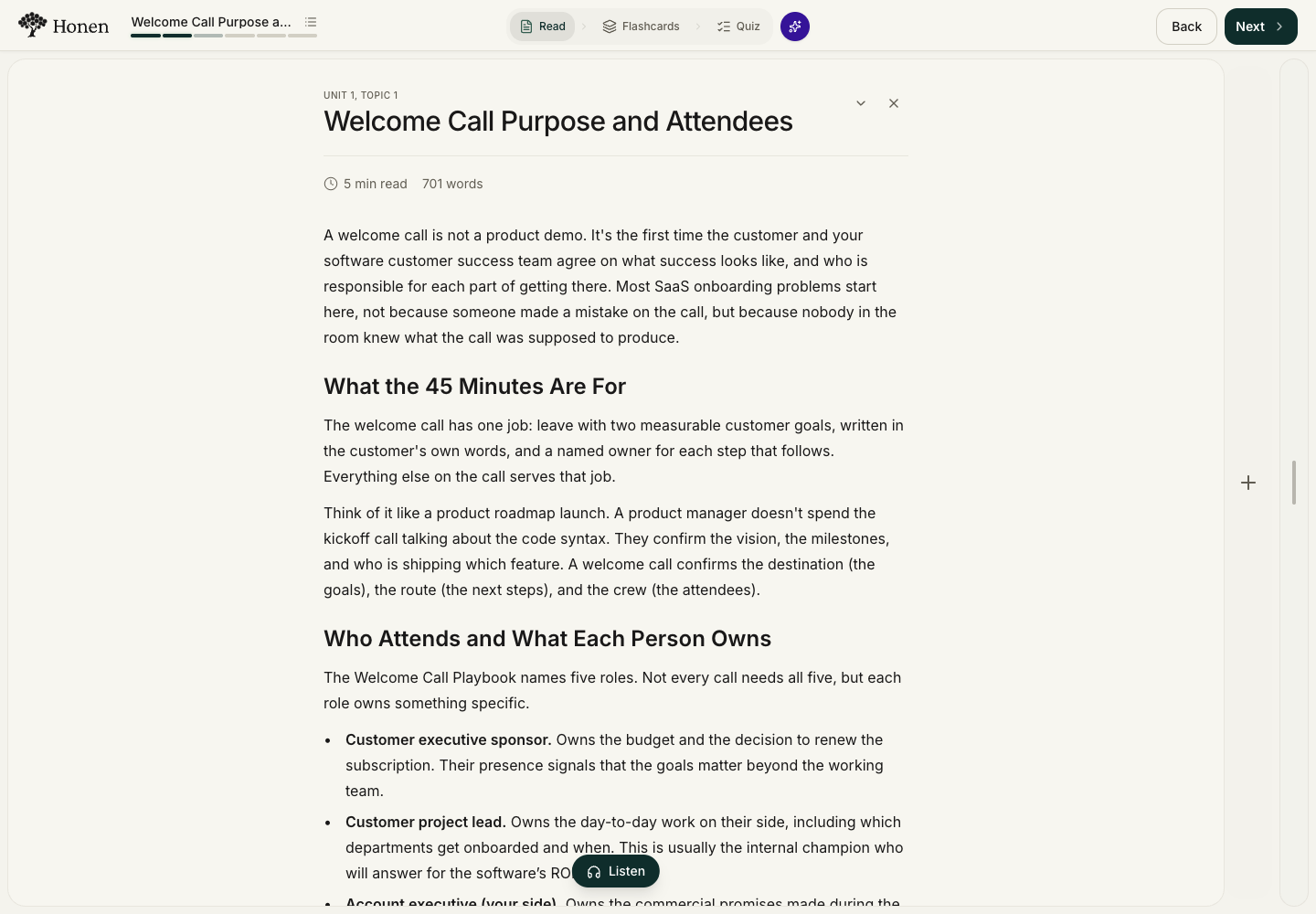
On desktop, drag the tutor panel’s inner edge outward to collapse it. Select the narrow bar to reopen it.
On mobile, select Back or X above the conversation to return to your lesson. Select the chat icon beside the input to reopen it.
You can also swipe from the screen edge to switch between the mobile lesson and conversation. Closing the conversation does not end a voice call.
Proactive help and optional practice
Proactive Tutor can offer help while you learn when the course enables it.
With Adaptive Courses — Beta, the tutor can suggest optional topics. Select Add & start to accept them.