
Add Honen as an LTI Advantage external tool so instructors can choose courses and graded assignments from Moodle. Use Moodle 3.10 or later with the LTI Advantage services needed for your rollout enabled.
You need a Moodle site administrator and a Honen administrator with permission to manage identity settings.
1. Configure the Honen launch
- Open Organization → Integrations → Your LMS → Moodle.
- Review LTI app branding, save any name/logo change, and choose the learner launch and landing options.
- Open Advanced options. Choose the default grade policy and confirm workspace/group role mappings.
- Copy the Dynamic registration URL with those options selected.
Use LTI settings and reporting to choose between embedded, new-tab, and hub experiences.
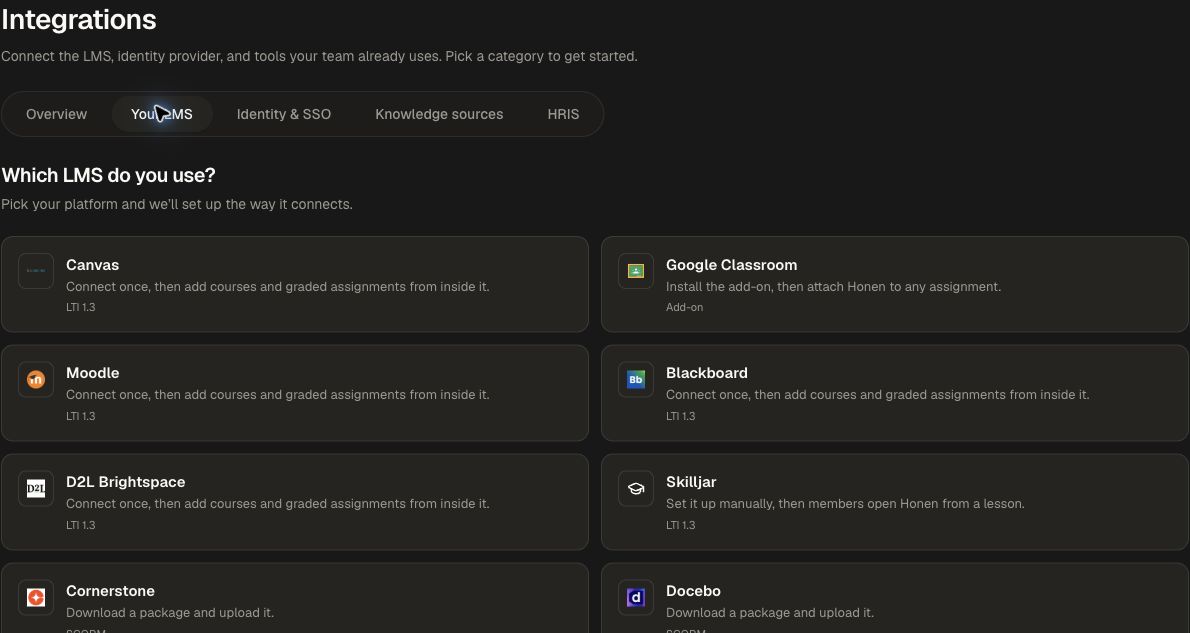
2. Register in Moodle
- Open Site administration → Plugins → External tool → Manage tools.
- Paste the Honen registration URL into Tool URL.
- Choose Add LTI Advantage.
- Activate Honen and review the tool's enabled services.
- Return to Honen and confirm the connection in Your LMS connections.
For a manually managed registration, use Manual LTI registration and the platform values from Moodle.
Match existing Honen accounts
Automatic matching is optional for each connection. It is off by default.
Enable this option only when your organization controls Moodle email addresses. A signed Moodle email can then identify an existing Honen member.
- Configure Moodle to send each user's name and email to Honen.
- In Honen, open the connection's Edit settings.
- Enable Automatically link existing Honen accounts by email.
- Enable Show only owned, editable, or linked-group courses if you want to restrict course selection.
- Choose Save settings.
- Open Honen from Moodle again as an instructor with the same email in both systems.
- Confirm the instructor's name and courses under Your courses.
Existing accounts must belong to this Honen organization to match. Pending invitations alone do not establish an account match. If no account uses the trusted email, Honen creates an LMS account with that email and the supplied name. Existing LMS-only accounts receive the trusted email on their next verified launch, with their progress unchanged. Honen retains an internal placeholder if email is missing, invalid, untrusted, or already belongs to an account outside this organization. The LMS session remains limited to this organization. Internal platform administrator accounts cannot use automatic matching.
Eligible placeholder LMS accounts link to the matching Honen account on the next verified launch. No new Moodle registration is required. Existing Honen courses and progress remain on the Honen account. Earlier placeholder activity remains stored separately and does not block linking. If the LMS changes an established email, Honen does not redirect that identity to a different account.
Honen uses the name supplied by the LMS during the session. Course sharing controls are hidden in LMS-launched learning.
3. Add content to a Moodle course
- Open the intended Moodle course as an instructor.
- Add an External tool activity and select Honen.
- Use Deep Linking to choose a course or graded assignment in Honen.
- Save the activity in Moodle.
- For a graded assignment, confirm the Moodle grade settings and the Honen passback policy.
4. Verify launch, roster, and grades
Open the activity as a test learner. Confirm the intended content and class context, then complete the selected requirement. Inspect the grade in Moodle when using a graded assignment and AGS. If using NRPS roster sync, check the corresponding Honen group and learner membership.
Also launch as an instructor so you can check the management experience. Test the actual browser and embedded/new-tab mode your learners will use.
Keep the connection aligned
In Honen, open the saved connection's Edit settings to review its launch, landing, grade, and role choices. Choose Save settings and test any change before wider rollout. Use the displayed secure launch-domain status and Re-check when provisioning needs another check.
Continue with LTI 1.3 settings, Groups, or SCORM export for a package delivery path.