
Use Analytics to move from organization-wide activity to a group, course, or learner. The screenshots show the fictional Northstar demo workspace.
1. Review monthly learning activity
- Open Analytics from the workspace navigation.
- Locate Monthly activity.
- Choose the Reporting month. The current month is labeled Month to date.
- Compare Started and Completed for Learner MAU and Courses.
- Use the information buttons beside a metric to read its definition before comparing numbers.
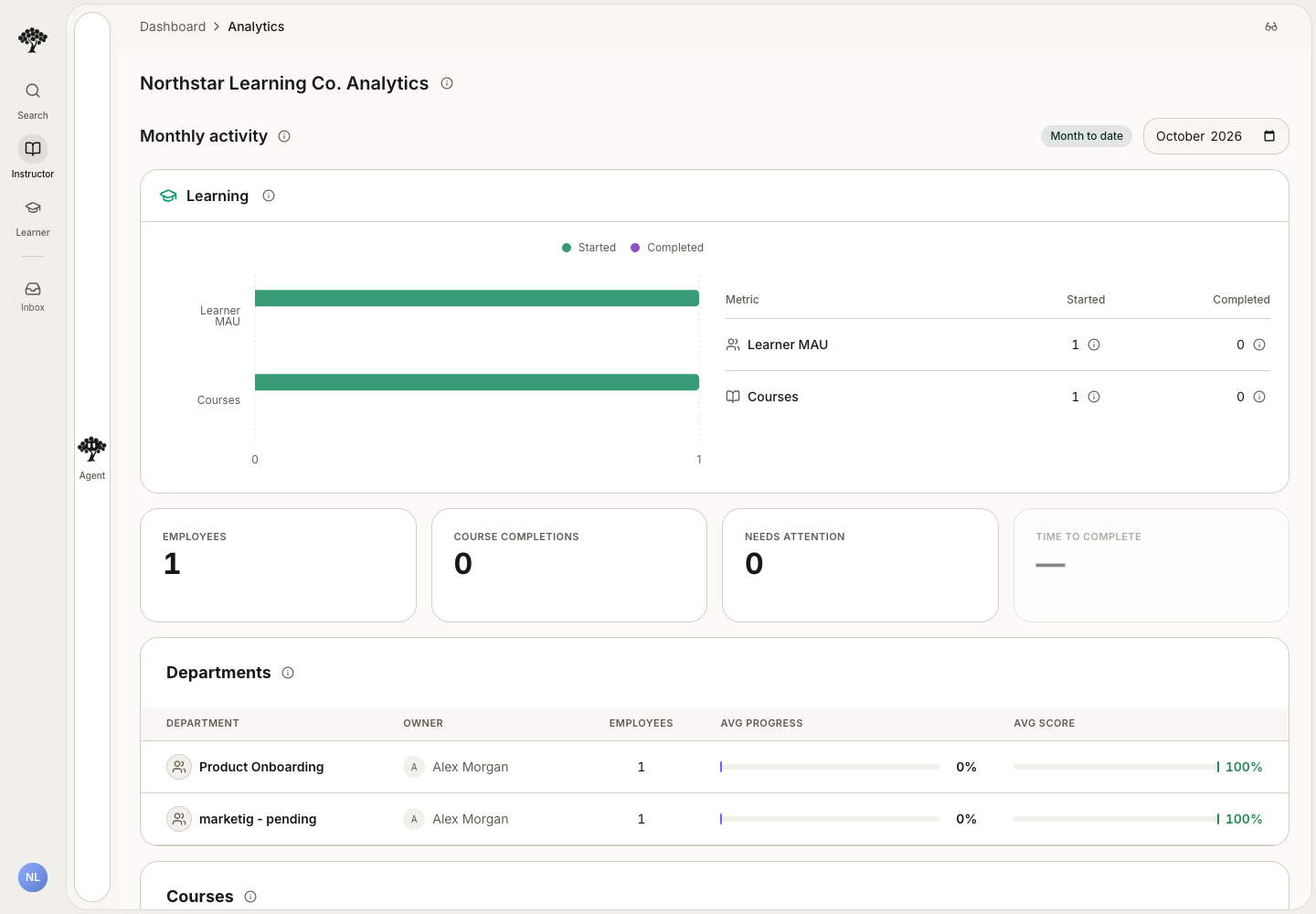
A month-to-date result covers the current month so far. Compare course counts with course counts and unique learner counts with unique learner counts.
2. Narrow the investigation
- Review Members, Course completions, Needs attention, and Time to complete.
- Use the Groups table to compare cohorts.
- In Courses, choose Most completed, Least completed, Highest score, Lowest score, Most enrolled, or Least enrolled.
- Review Member-initiated learning separately from assigned course performance.
- In Learning modes, switch between Time used and People used.
Each learning mode shows its icon and bar in the color of its activity group. These are the same colors as the format icons in a course. Modes in the same group share a color, so use the row label to tell them apart.
To focus on a single cohort, open My groups, choose the group, and select Analytics. Its member table offers search, membership, sort, and score filters. Course completion should be interpreted alongside the content and completion rules assigned to that cohort.
Review learning from LMS packages
The SCORM / cmi5 learning table connects exported packages with recorded learner launches.
- Open Analytics.
- Find SCORM / cmi5 learning.
- Review each package's format, learner count, launch count, and last launch.
- Select a package to open its learners.
- Review each learner's course progress and scores.
- Compare these results with Member-initiated learning and assigned learning where relevant.
An exported package is not proof of installation in an LMS. Not launched means Honen has no recorded launch for that package. Progress and scores are course results for learners who launched the package. They can include work completed outside that package. Use the learner and course details when you need to investigate a particular result.
3. Ask an analytics question
Open the Workspace Assistant from the page and describe the scope and period you need. For example: “Summarize monthly learning activity for this workspace and explain what each metric counts.” Review the sources and the returned scope before using the result.
Use the analytics question library for ready-to-adapt questions covering progress, assignments, assessment answers, learning modes, projects, and retention. Name the intended cohort so the answer stays useful to the people managing that program.
4. Review creation activity
Find Course creation on the analytics page. Review monthly active creators and the Started and First published counts for Courses, Assessments, and Atoms. Opening or editing an existing course is different from a first publication.
5. Create and save a custom report
The Workspace Assistant can create a custom report with its own page. You can save the report and add it to your dashboard.
- Open the workspace dashboard and find Custom Reports.
- Select Add widget to open the Workspace Assistant.
- Describe the audience, period, metrics, and presentation you need.
- Review the report preview and its metric definitions.
- Select Save to Reports to keep it in your report library.
- Select Add to dashboard if you also want a dashboard widget.
- Select View reports under Custom Reports to open your saved reports.
For example, ask: “Create a report of course completions this month. Include a course table and explain how you count completions.”
Reports belong to your account in the active workspace. A report link does not give another person access. An unsaved preview stays available through its link or the conversation.
Ask the assistant to find or open one of your saved reports. Select Edit with assistant on a report page to change it. Select Refresh to update its data. Reports also refresh while visible, according to their refresh interval.
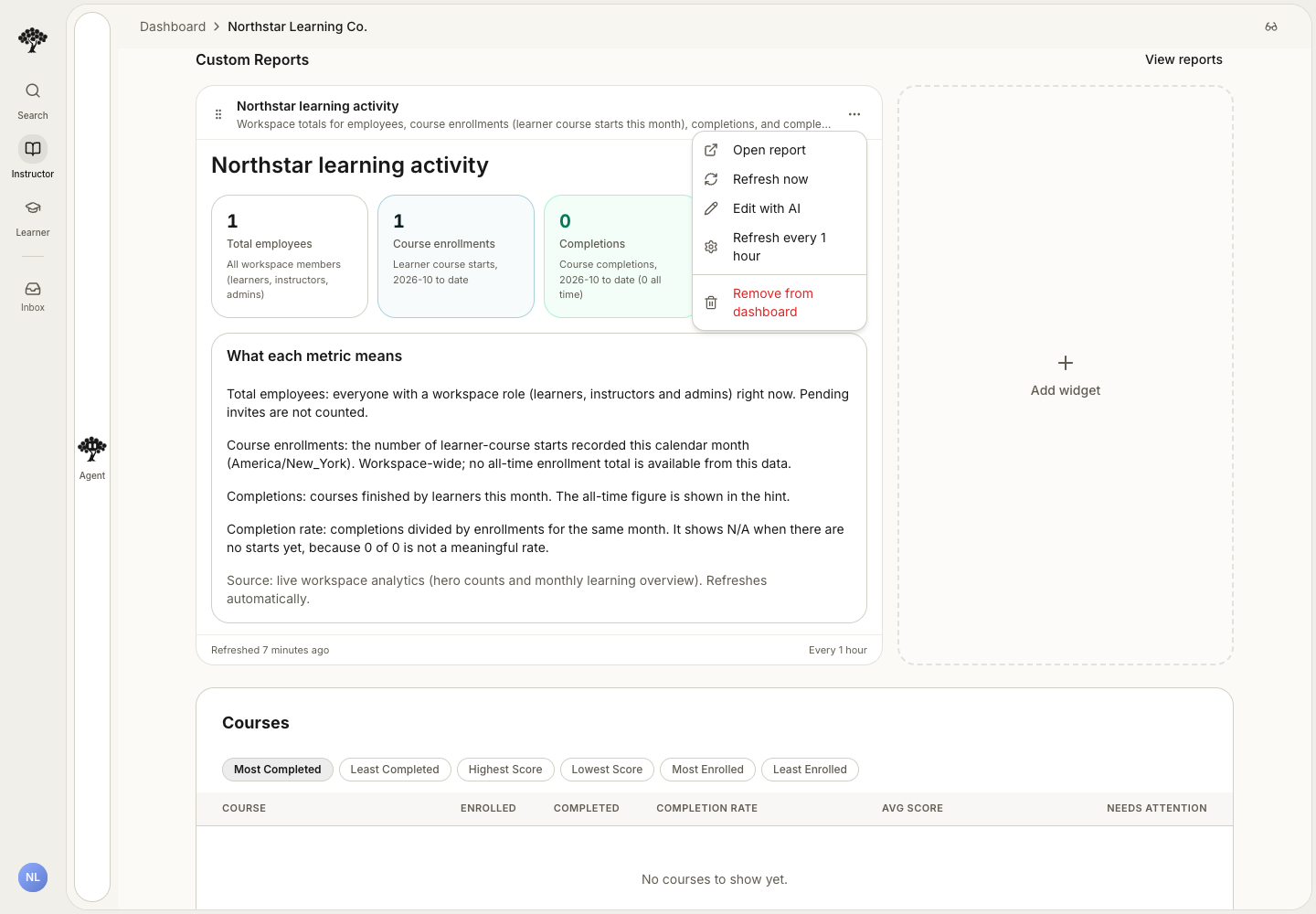
Removing a widget from the dashboard keeps the saved report and its page. The dashboard widget menu also provides refresh and interval controls.
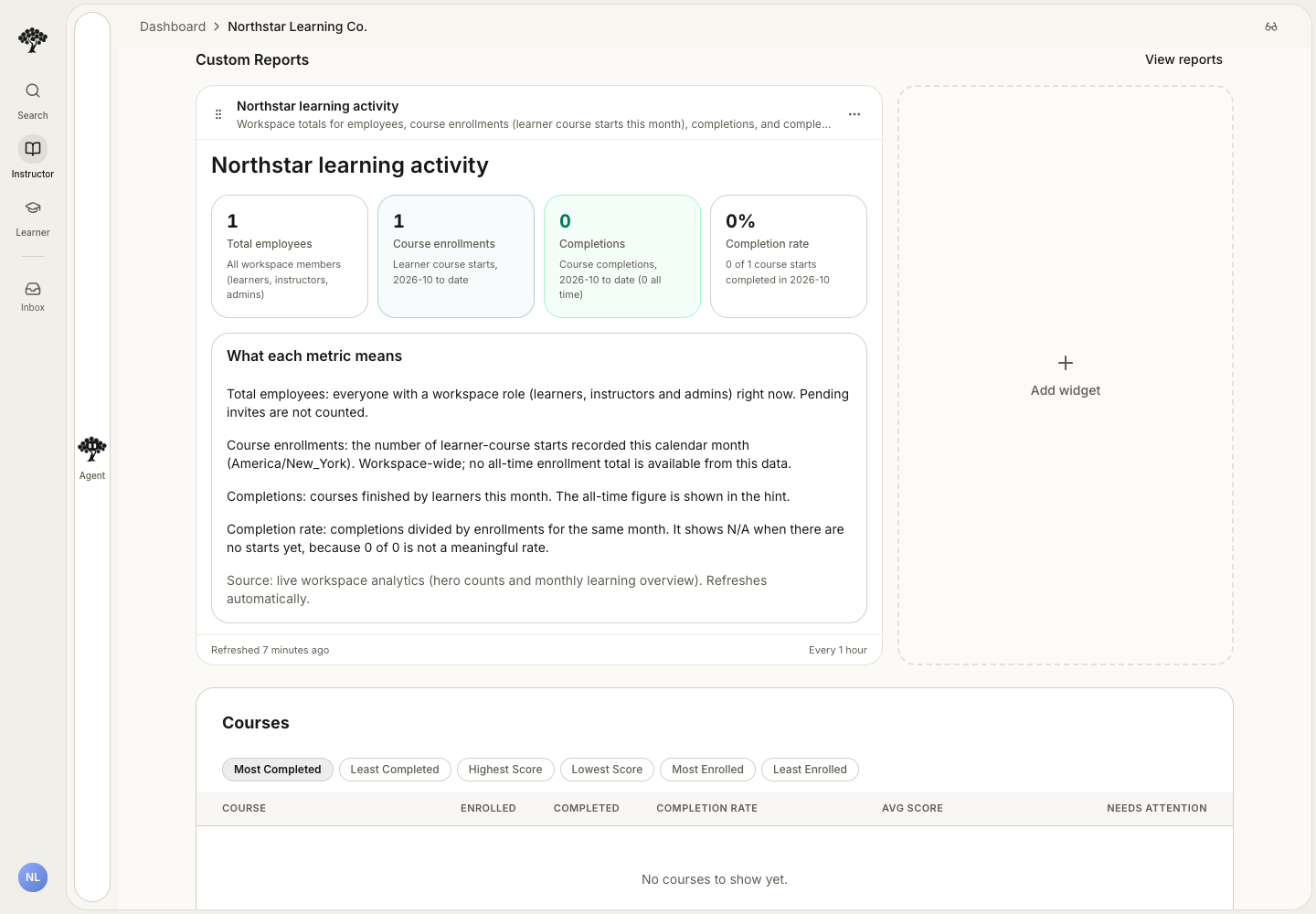
The example uses monthly learner–course starts as its enrollment measure. Check each report’s period and definitions before comparing results.
6. Turn results into a next step
Compare Needs attention with the cohort’s assignment requirements. Ask the Workspace Assistant to focus on a course, group, or learner: “For this onboarding course, show the units and topics learners are struggling with, then summarize quiz and test performance.” Review the relevant activity or project submission before deciding whether learners need more practice, a clearer explanation, or a revised source.
For leadership or program reporting, specify the cohort and period in the report request. To combine learning records with approved business data, follow Connect learning and business outcomes.
Review workspace event activity
Open Organization → Usage & Adoption for the workspace you manage. Access requires permission to view workspace analytics. Platform administrators can also open a workspace’s Usage page from Workspaces.
- Select Activity.
- Choose a date range.
- Search People and select a member to show that member’s events.
- Search event names or select a source to narrow the timeline.
- Select an event to open its details in the side panel.
- Close the panel to return to the same timeline.
- Select All members to return to workspace activity.
- Select Overview to review usage charts for the same member and period.
Exclude internal members is on by default. It removes activity from accounts with an email address ending in @studyfetch.com or @honen.com, regardless of capitalization. The filter applies to member lists, event timelines, charts, rankings, learning and tutor time, and period comparisons. Turn it off to include those accounts. Changing this filter clears the selected member. It does not delete events.
Events appear in time order, with the newest first. Select Load older events to continue through the results. Select Refresh to update the current view.
Only recorded events associated with the workspace appear. Older events without a workspace association are unavailable. Event details contain operational metadata. They do not show message bodies, prompts, or credentials. Activity counts show recorded actions; they do not establish learning outcomes.
Tips for a smooth setup
- Compare loaded results: let the report finish loading, then use its current values for your comparison.
- Use the cohort’s completion criteria: inspect its assignment requirements when interpreting completion.
- Give reviewers the right access: use a role with analytics access at the intended workspace or group scope.
For intake, employment, and government-format evidence, use Funder and Compliance Reporting.
For the completion requirements behind a cohort's results, inspect its assignments and curricula.