
Tell the Workspace Assistant what you want to create. Include the content type, audience, goal, and required formats in your request.
| Type | Use it for | Example request |
|---|---|---|
| Course | Connected lessons and practice organized into units. | “Create a two-unit course for new support teammates using the attached playbook.” |
| Assessment | A standalone test, project, or both. | “Create an assessment of the welcome-call procedure, with a test and a role-play.” |
| Atom | One focused lesson or project. | “Create an Atom with a short reading and three flashcards about confirming a customer's goal.” |
Create a Course
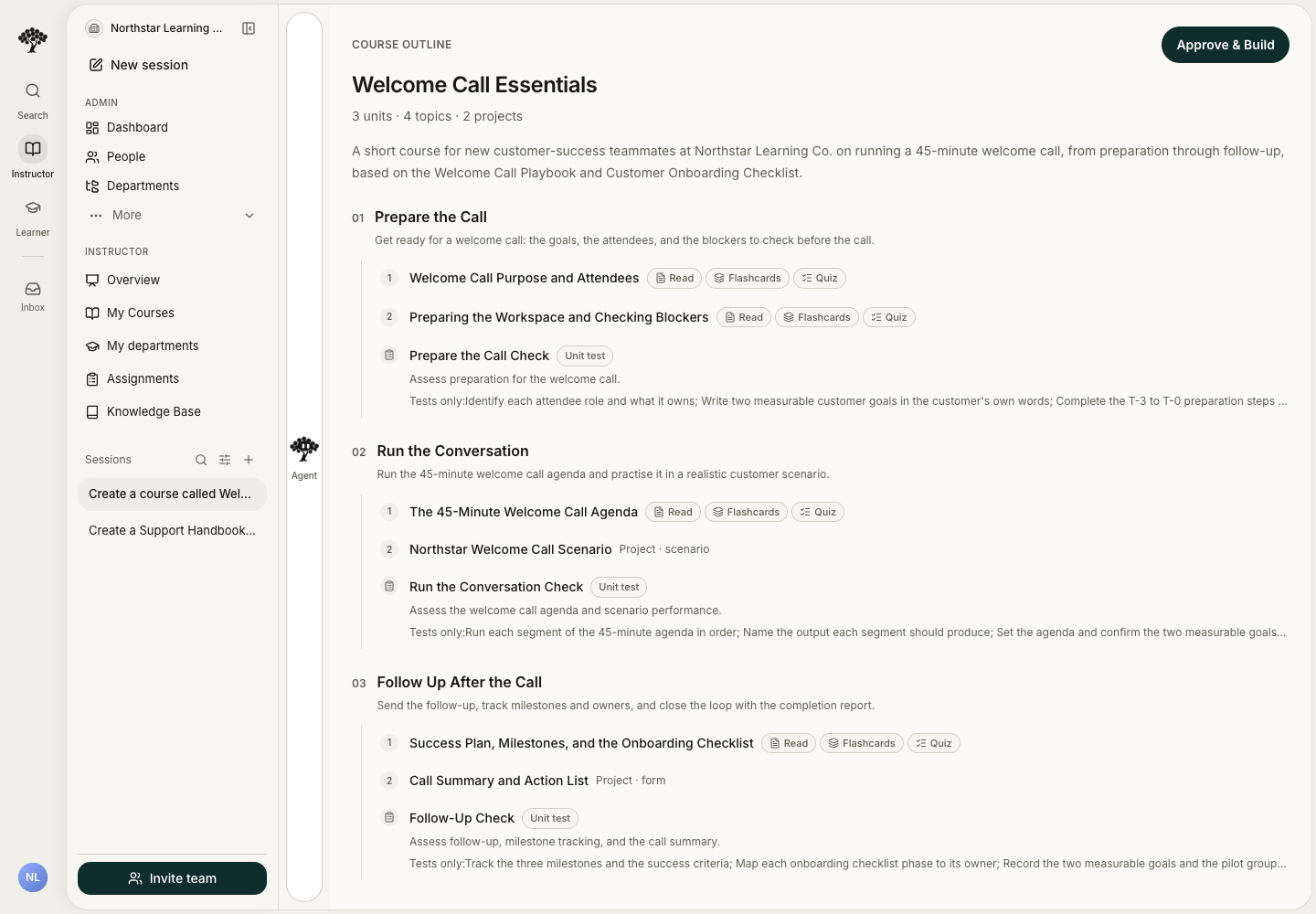
- Open Home and enter your request in Ask Honen Agent.
- Ask for a course and describe what learners should be able to do.
- Attach the required source material.
- Answer any missing setup questions.
- Review the proposed outline beside the conversation.
- Request changes if needed, then select Approve & Build.
- Review the generated activities in Preview and Edit.
Follow Create your first course for the complete workflow.
Create an Assessment
- Ask the Workspace Assistant for a standalone assessment.
- Name the skill, audience, and source material.
- Specify a test, a project, or both.
- Answer any missing questions and review the proposed task.
- Inspect the generated questions, instructions, answers, and grading criteria before delivery.
For example:
Create an assessment for new customer-success teammates. Use the attached onboarding checklist. Include a five-question test and a welcome-call scenario.
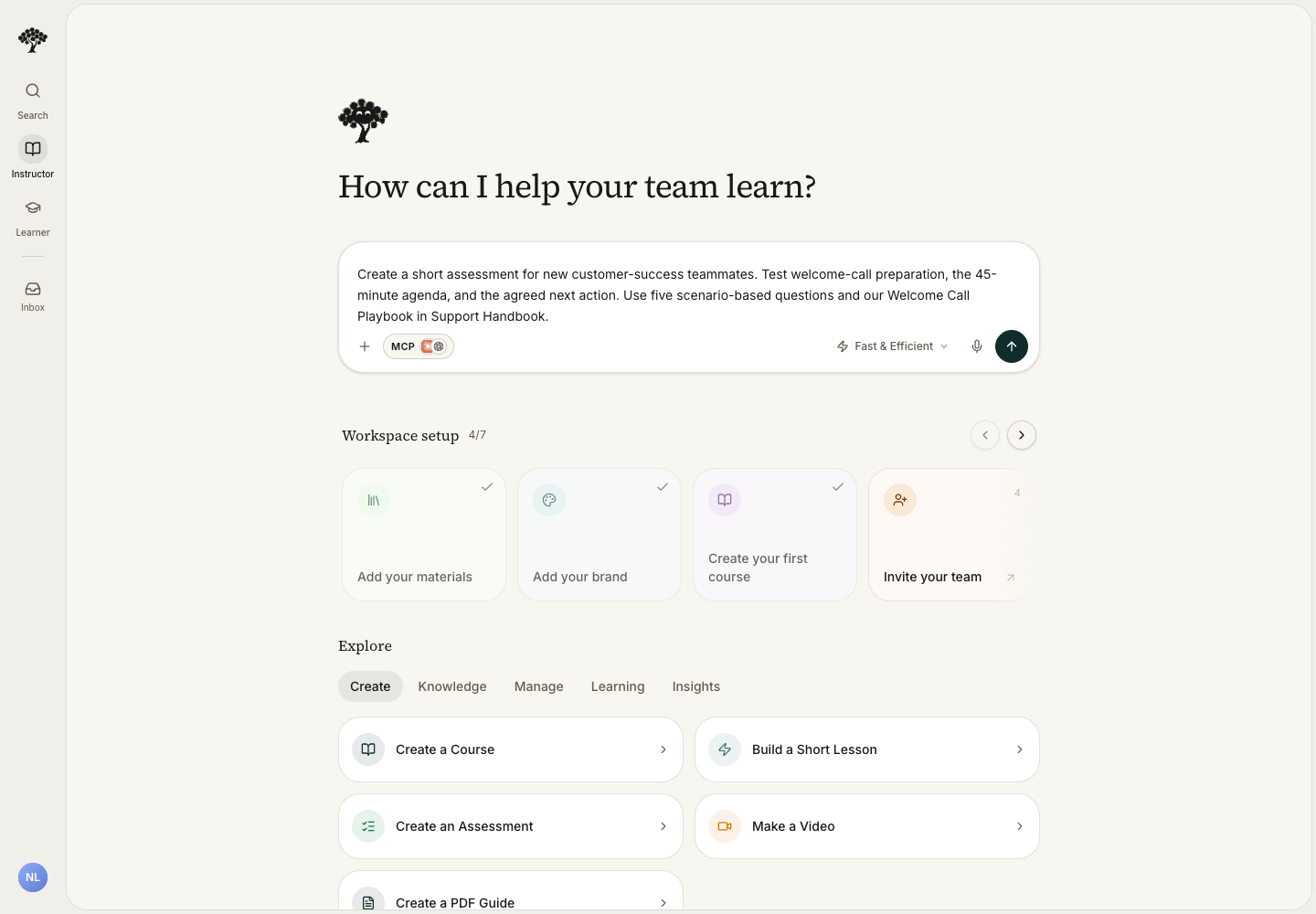
An Assessment checks performance. A short introduction can explain the task without adding a surrounding course.
Create an Atom
- Ask for an Atom and name one concept or task.
- Specify the format, such as a reading, flashcards, podcast, or project.
- Attach the relevant source.
- Review the finished content and request focused changes in the same conversation.
For example:
Create a flashcard Atom for new support teammates. Use the attached checklist to teach the three welcome-call preparation steps.
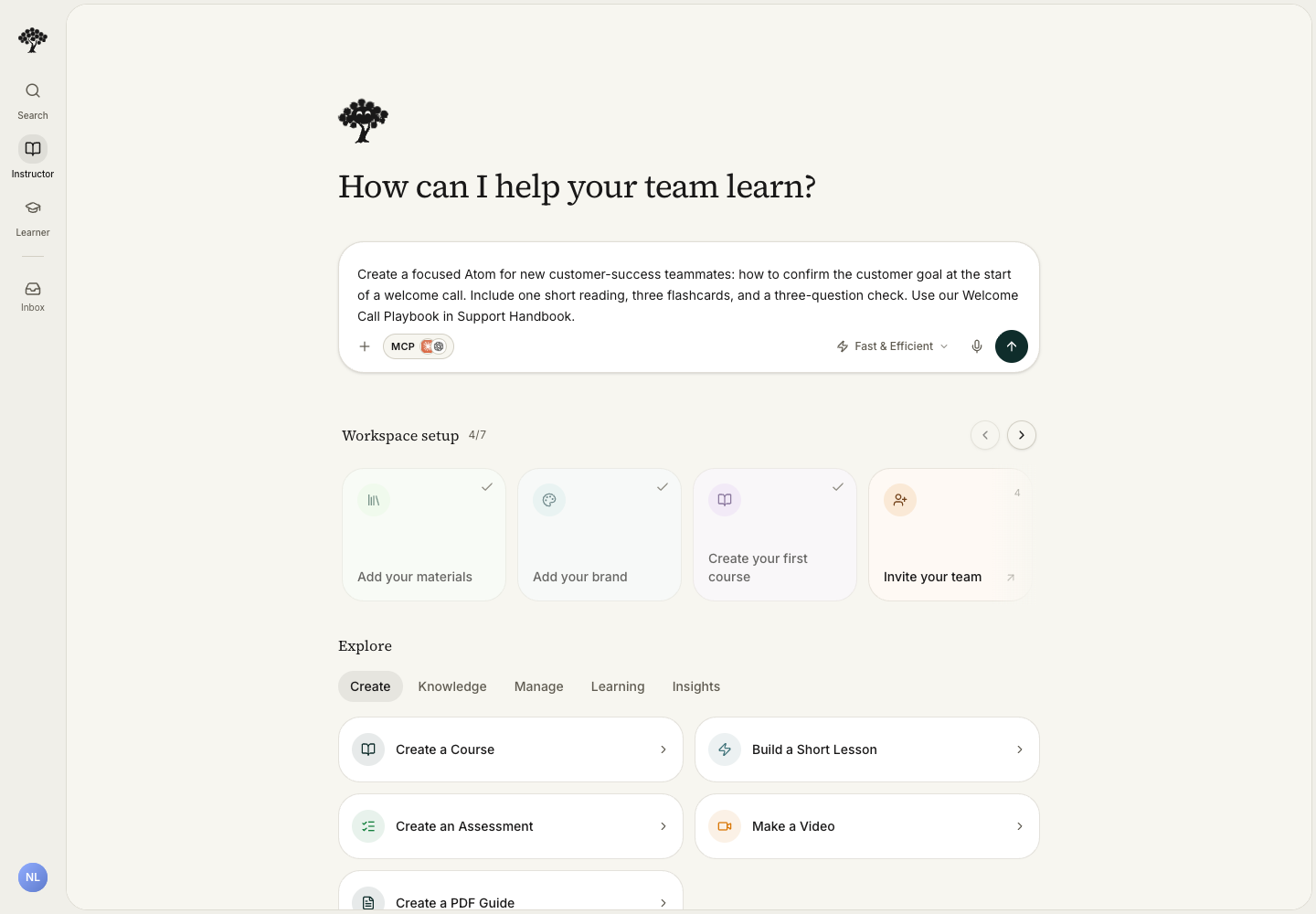
A new single-activity Atom opens in Preview without a course outline or course progress bar. Select Edit when you want to change it directly. Use an Assessment for a standalone test.
Check the scope
Confirm that the result matches the requested type. If it contains unnecessary topics, ask the assistant to narrow it before delivery.
Saving a draft does not assign or share it. Follow Publishing and review when it is ready.
A single-activity Atom starts directly in the activity. Select I'm done to see its results. The results show whether you have finished the required work. Author preview shows Preview complete without recording learner progress.