
Use a form project when learners should submit a structured response, such as a plan, reflection, or checklist. This walkthrough uses fictional welcome-call data in the Northstar demonstration course.
1. Create the exercise
- Open the course editor and its Workspace Assistant.
- Name the unit that should contain the project and describe the fields, learner task, and evaluation criteria.
- Ask for a form project. For this example: “Add a welcome-call summary form to the follow-up unit. Ask for two measurable goals, the pilot group and course, open risks, an action list with owners and dates, and the next check-in. Use fictional data and grade against the supplied welcome-call playbook.”
- Wait for generation, then open Edit and select the project in the course contents selector.
- Check the form's Preview tab. Confirm each field has a clear label and the expected input type.
2. Check learner instructions and grading
- Open Instructions. Write directions to the learner, including the scenario, what to submit, and the sources they should use.
- Open Rubric. Check each criterion's name, weight, and description.
- Make the expected answer concrete. If each action needs a named owner and a specific date, say so in both the task and the relevant criterion. Learners can then use the same criteria to prepare their response.
- Select Save, then Distribute → Apply changes to learners when the draft is ready.
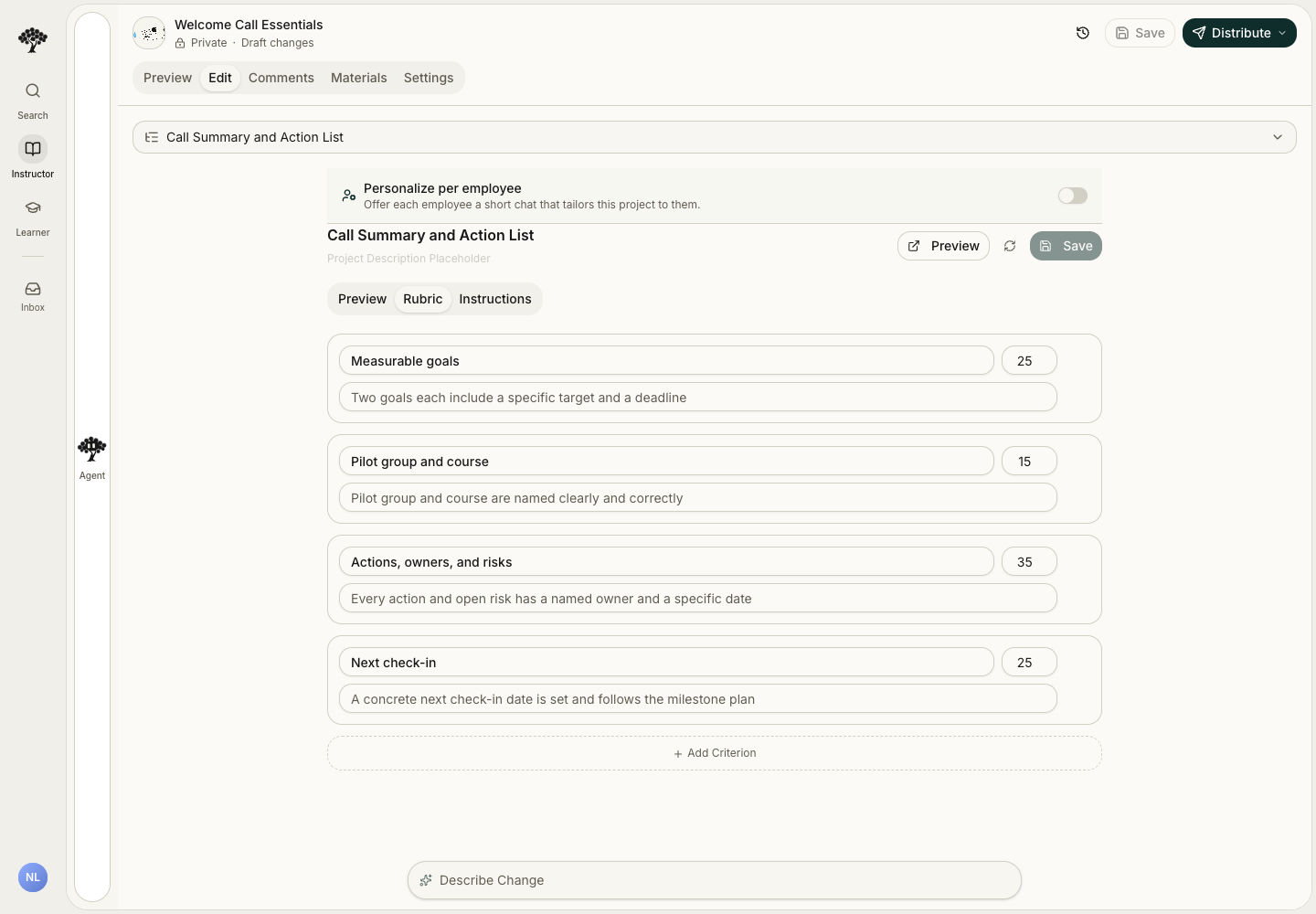
In this example, the four criteria are Measurable goals, Pilot group and course, Actions, owners, and risks, and Next check-in. Describe the evidence you expect and allow equivalent correct wording.
3. Try the learner submission
- Open the project's Preview link to enter the learner experience.
- Read Instructions and select Begin.
- Complete the fields using the fictional customer scenario. Include a target and deadline for each goal, and an owner and date for every action.
- Select Submit and wait for evaluation.
- Review the score, criterion breakdown, and feedback to see how the response meets the rubric.
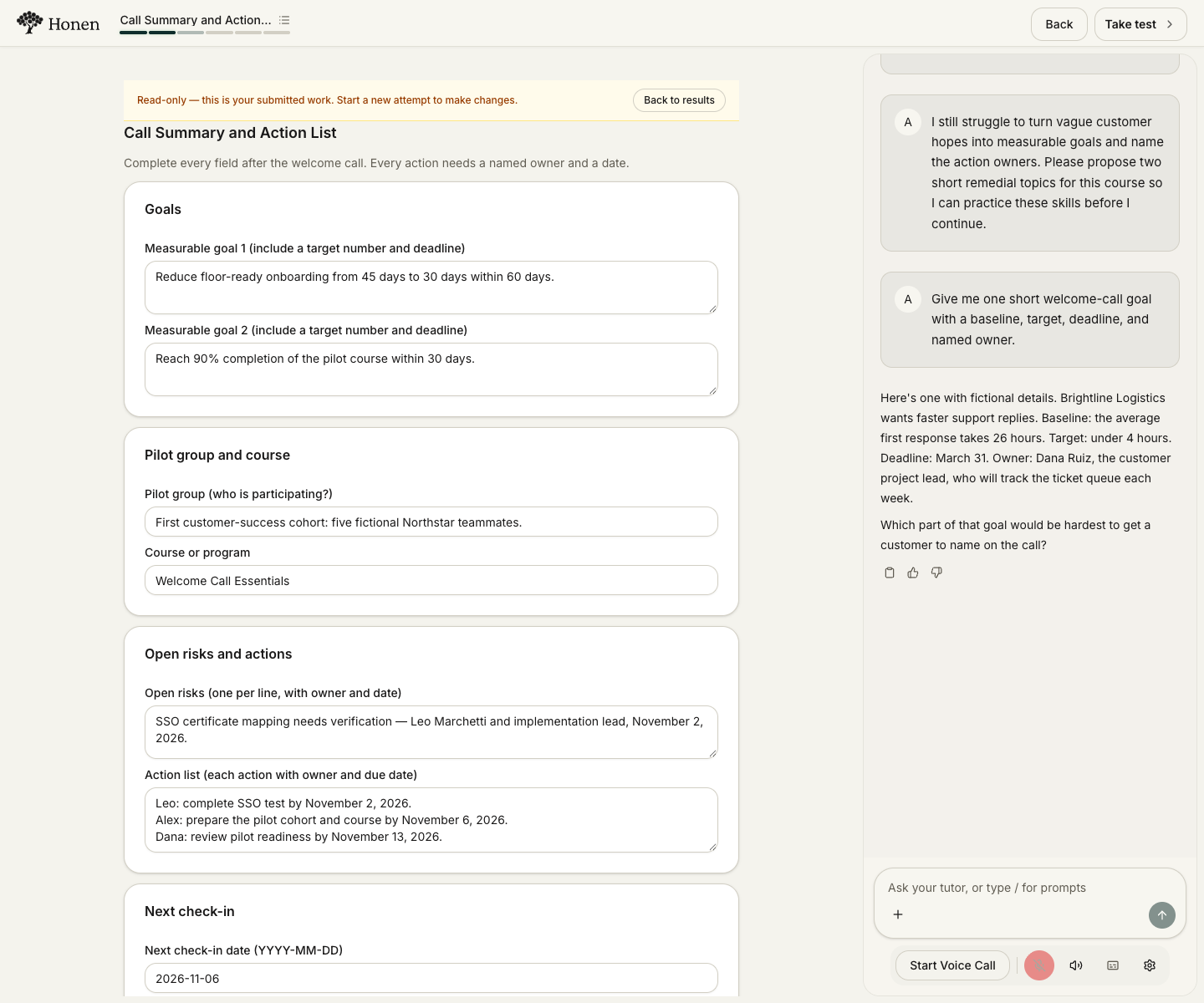
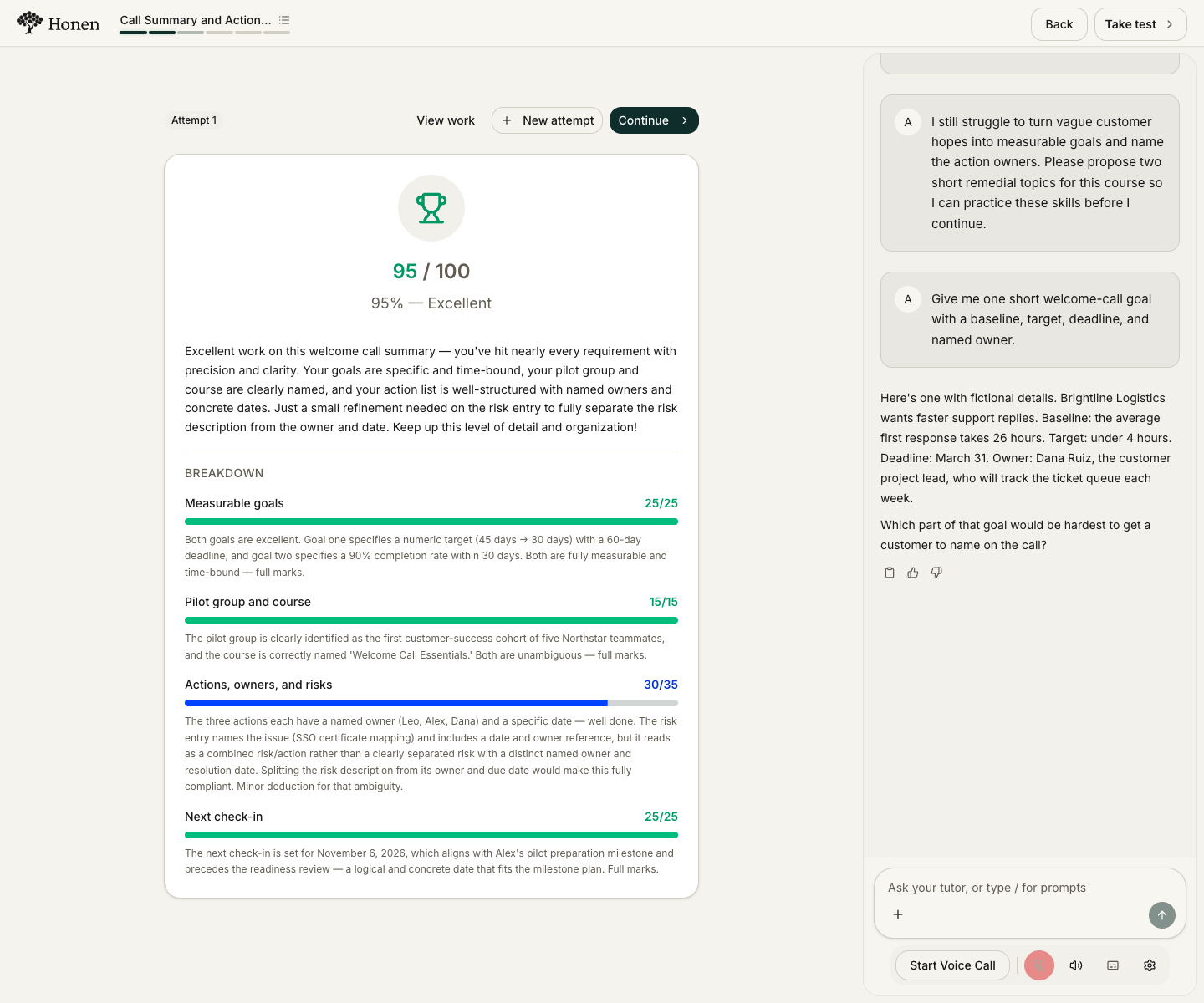
Use View work to inspect a submitted response. If you change the instructions or rubric after testing, apply the change and use New attempt to check it again. An existing attempt's feedback remains evidence of the earlier submission.
If an evaluation fails or omits rubric results, Honen retries it once automatically. If grading remains unavailable, no new score is recorded. Your previous valid grades stay unchanged. Select Submit again to retry. A failed evaluation does not send a grade to your LMS.
Continue
See Activities and projects to choose another exercise type, Edit and review a course to manage revisions, and Role-based training to connect the exercise to a real work task.