
Use the Workspace Assistant to create a course. The course page opens beside the same conversation. Honen saves the proposed outline before it builds the lessons. Review the outline and approve it when ready.
1. Describe the course
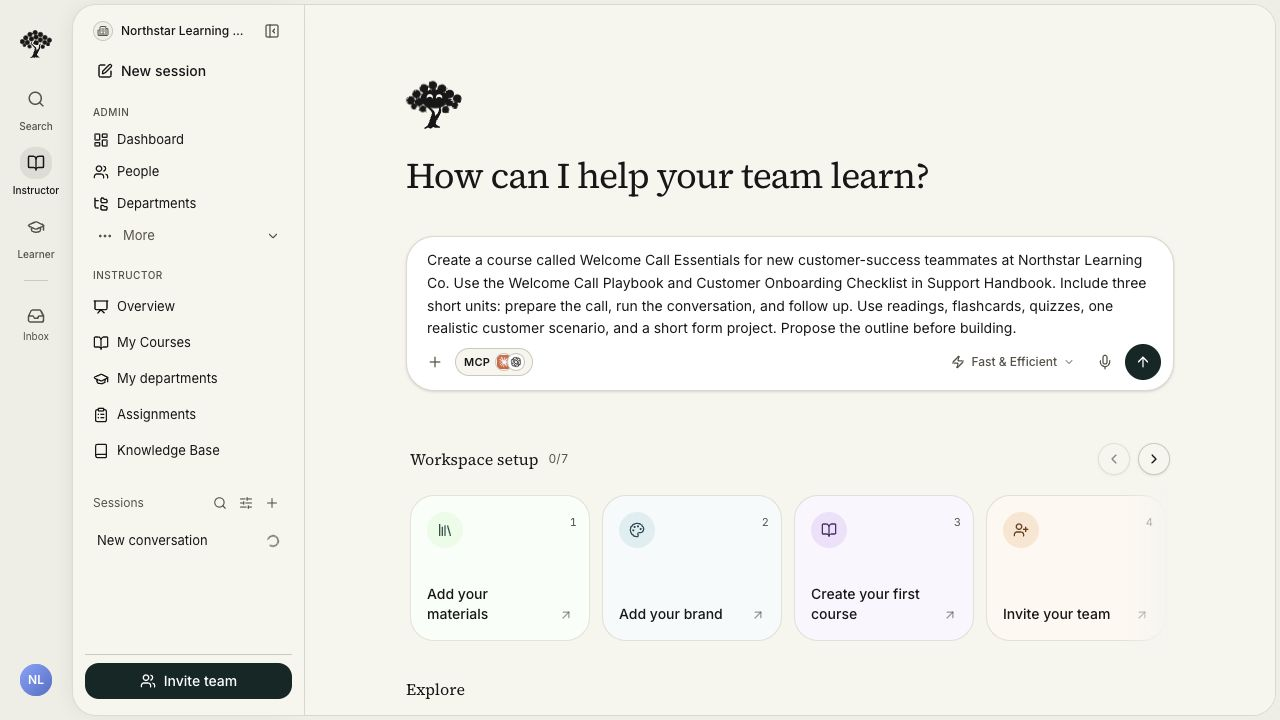
- Open Home and enter your request in Ask Honen Agent.
- Describe the audience, subject, learning goals, and desired length in the Workspace Assistant.
- Name any required sources and activity types.
- Specify constraints, such as a text-only course or a three-question quiz.
- Send your request.
For example:
Create a short course for new customer-success teammates. Teach them to prepare and run a welcome call. Use my attached playbook. Propose the outline before building lessons.
Name any required template or brand in your request. Continue in the same Workspace Assistant as the course opens beside it.
2. Add source material
- Attach your document in the conversation, or upload it through the course's Materials page.
- If a course is open, choose its named row to keep the upload with that course.
- Choose Knowledge Base for a reusable source, then select a folder or the root location.
- Select Upload.
- Wait until the source is ready.
- Tell the assistant which source to use and what learners should learn from it.
Course uploads belong to that course. Knowledge Base attachments retain a reference to the version used by the course. See Add sources to a course for details.
3. Review the outline
- Answer any missing setup questions in the conversation.
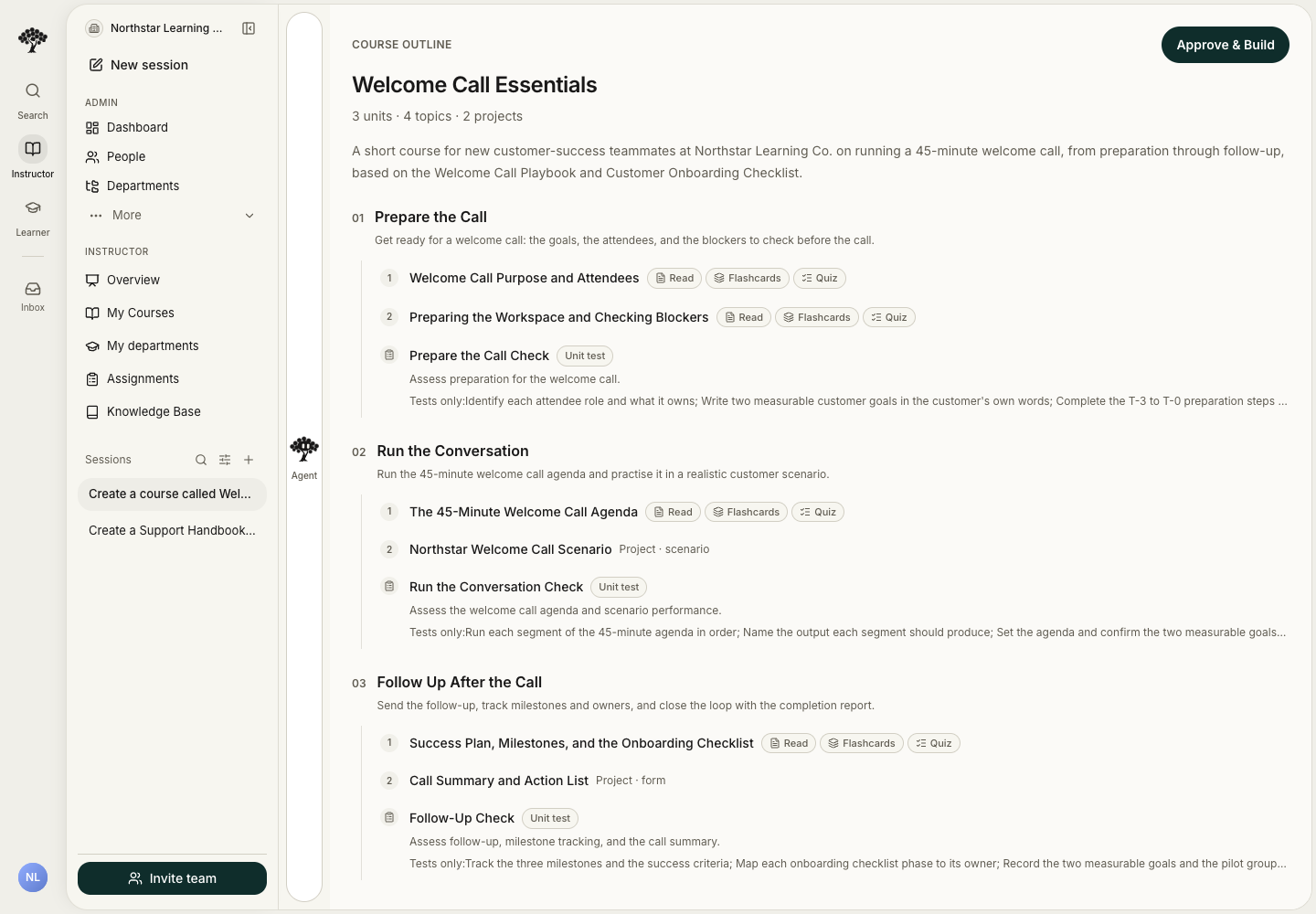
- Review the proposed units, topics, learning goals, activities, and tests on the course page.
- Ask for changes in the same conversation.
- Select Approve & Build when the outline is ready.
Honen saves the outline and course draft together. Requested outline changes update the same draft before you approve the build.
The course header and editing tabs appear after approval starts the build. If approval fails, the outline remains available so you can correct it and retry.
4. Review the course
- Follow the activity status while Honen builds the course.
- Open available activities to inspect their content.
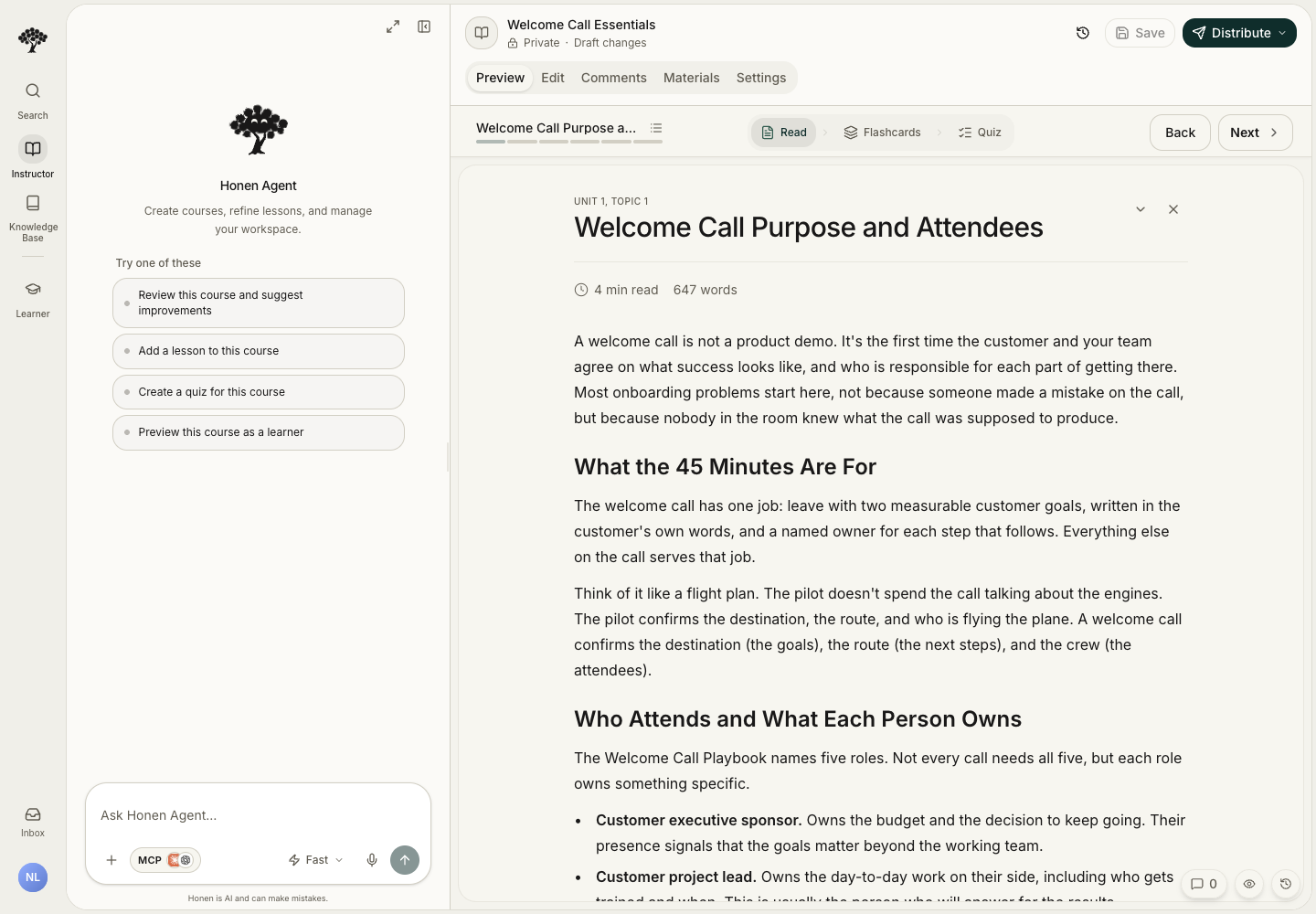
- Use Preview to try activities and Edit to make manual changes.
- Ask for assistant changes in the same conversation.
- Check the generated content against your requested length, formats, and sources.
- Select Save to save pending manual edits.
5. Prepare learner access
- Open Distribute → View as Learner to check the learner experience.
- Return to the editor if you need changes.
- Use Distribute → Apply changes to learners when the draft is ready.
- Use the assignment or sharing actions only when you want to provide access.
Version history lets you inspect earlier course revisions. Saving a draft does not assign or share the course.