
Use the Workspace Assistant or direct editor to update a course draft. Preview the result before applying it to learners. You need course editing access.
1. Open the course
- Ask the Workspace Assistant to open the course you want to change.
- Check the course title in the header.
- Continue in the same conversation while the course page stays open beside it.
You can also find the course in My Courses and select Edit.
2. Inspect the learner preview
- Select Preview.
- Open the topic, test, or project you want to check.
- Try the available activity formats.
- Collapse the assistant panel if you need more space.
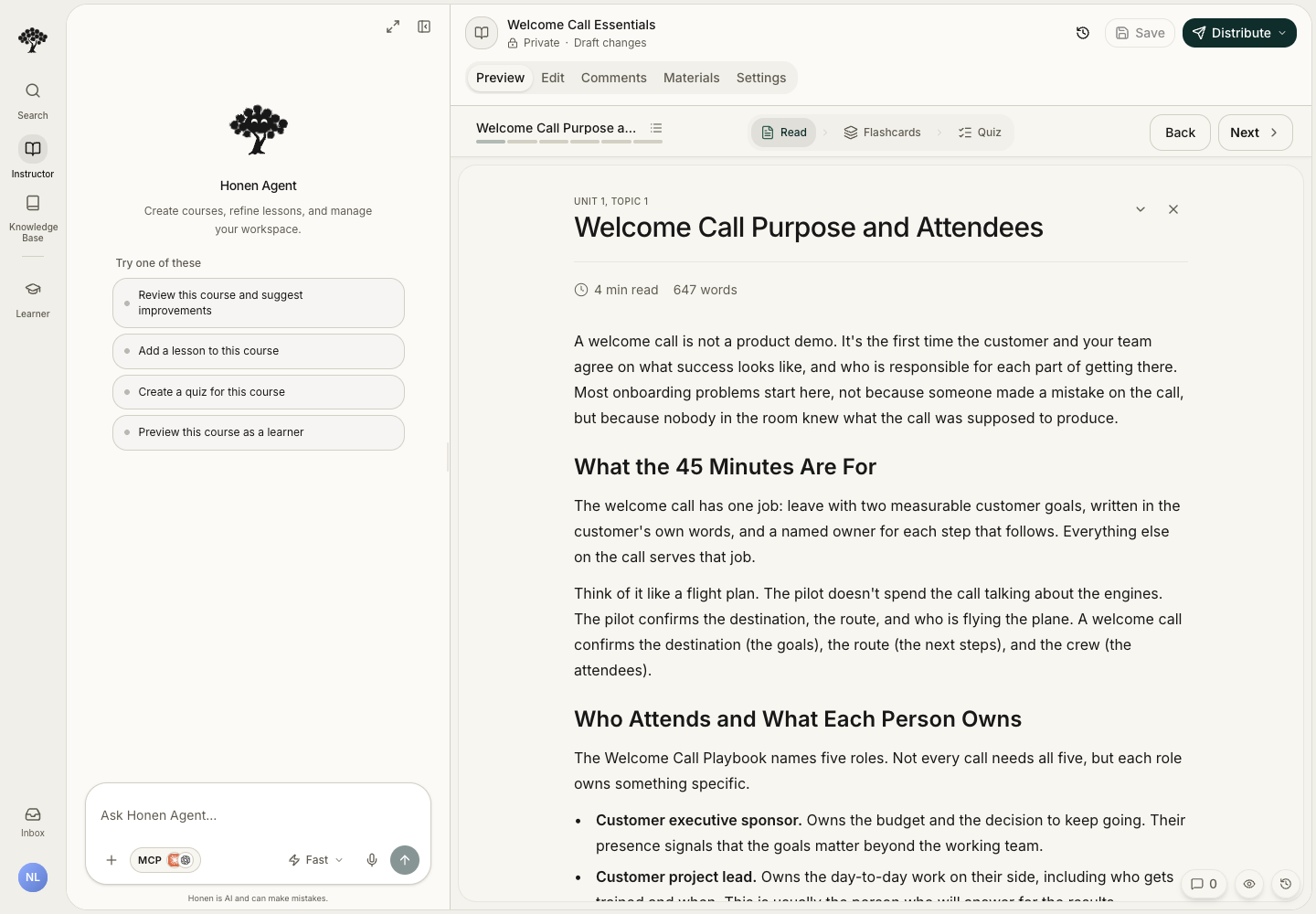
Preview displays the working draft. To check the full applied learner experience, use Distribute → View as Learner.
3. Request a focused change
Name the topic, the change, and the details to retain. For example:
In Welcome call, shorten the reading's introduction. Keep the five planning steps and the approved source references. Leave the other topics unchanged.
You can use Preview while the assistant edits. The preview refreshes after the assistant finishes. Direct edits are temporarily locked. If you try to edit, a short message explains the lock. The conversation remains available across course tabs.
4. Edit directly
- Select Edit.
- Open the course contents selector and select a topic or activity.
- Update the relevant text or settings.
- Select Save in the course header.
- Return to Preview and check the result.
Generation instructions guide future generation. Changing them alone does not rewrite existing activities.
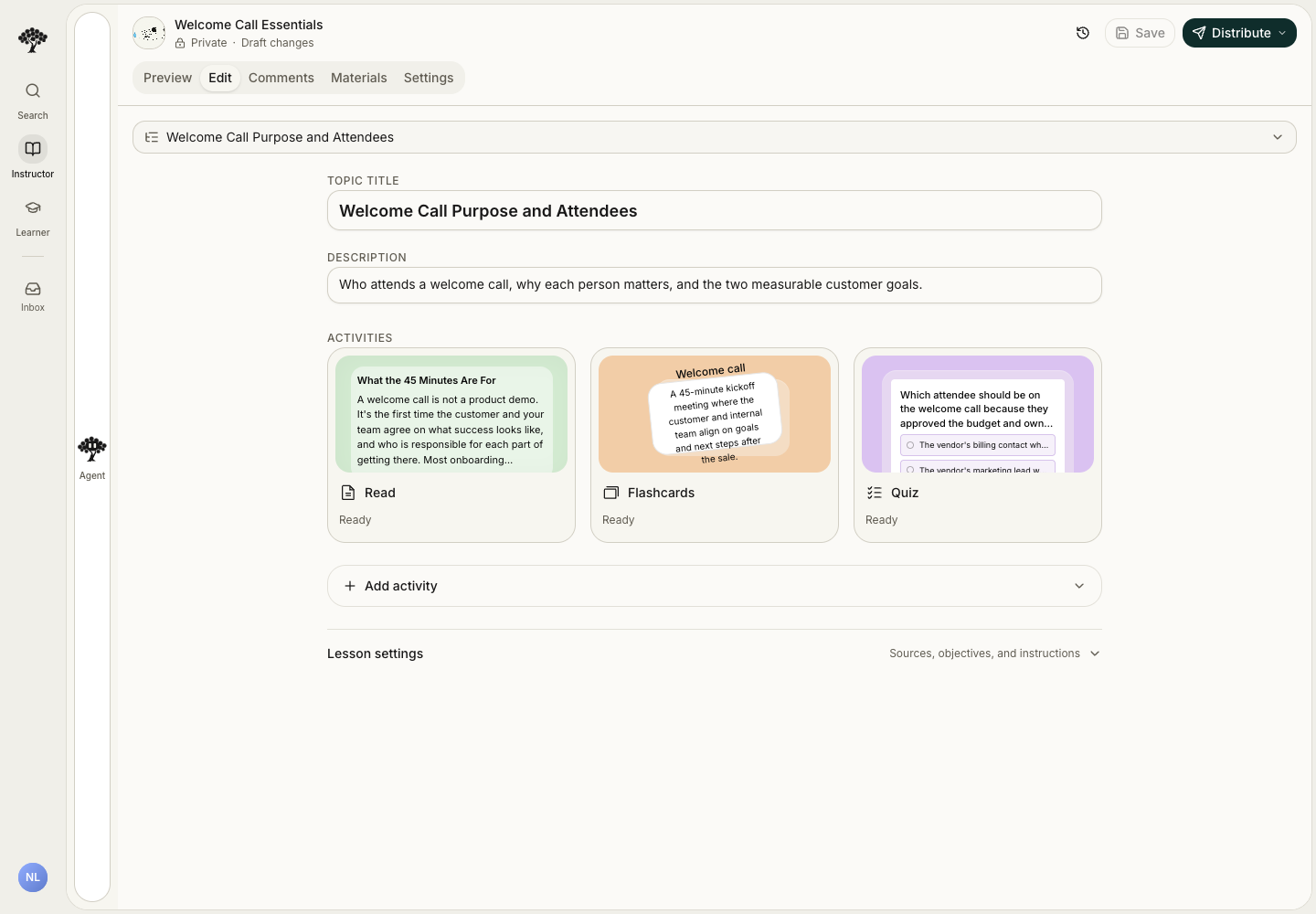
Use Edit readings and add images for text and media changes.
5. Apply and verify
- Finish the content review.
- Select Save if manual edits are pending.
- Open Distribute → Apply changes to learners.
- Wait for the operation to finish and check for errors.
- Confirm that Draft changes clears.
- Open Distribute → View as Learner and check the applied result.
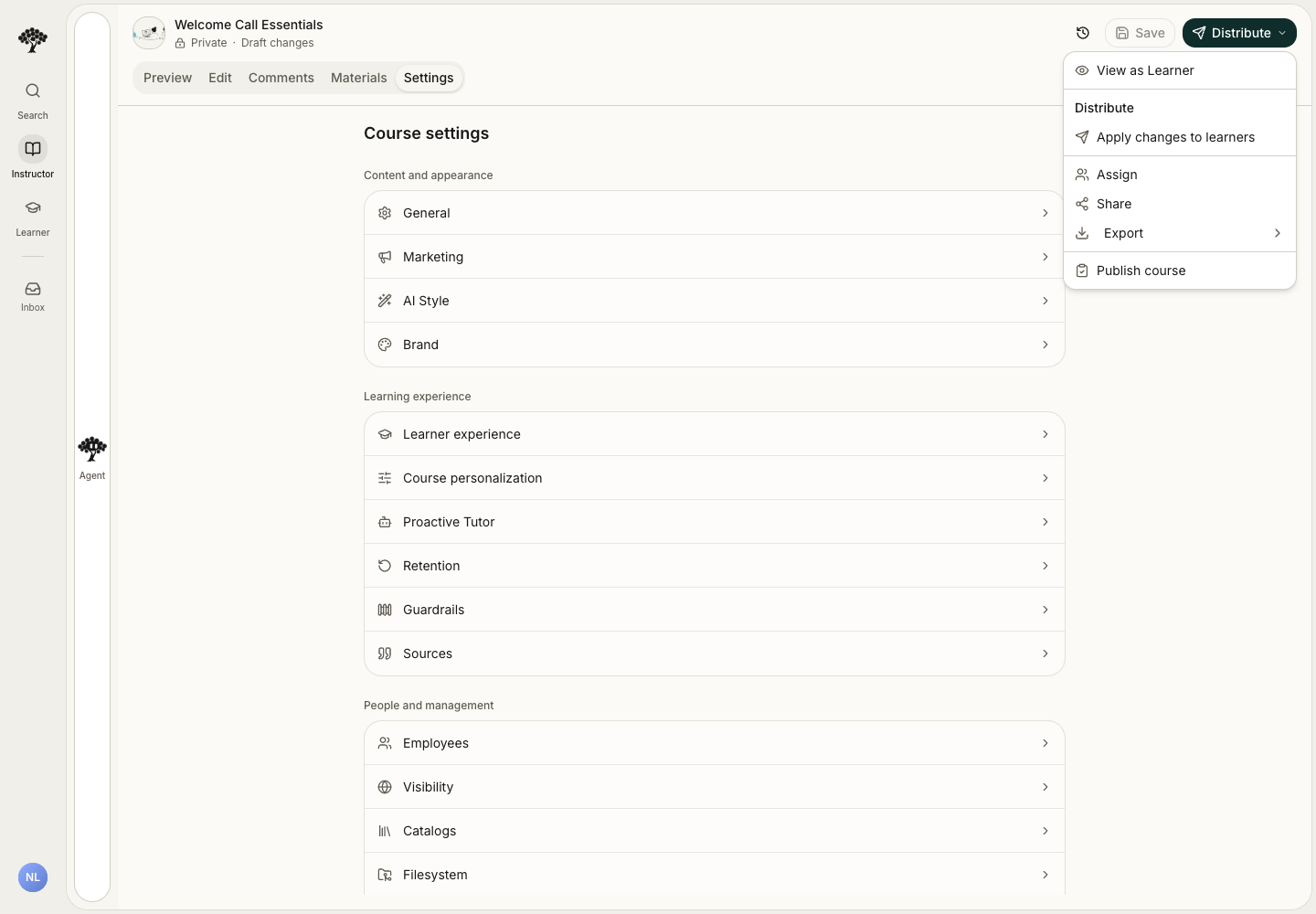
The Version history button in the header opens saved revisions. Preview a version before considering a rollback. Follow Publishing and review for catalog delivery and approvals.