
Honen Agent brings course authoring and learning management into one conversation. It is also called Workspace Assistant in these guides. Ask it to create training, organize people and groups, assign learning, or review progress. The relevant page opens beside your conversation so you can inspect the result and continue the task.
Manage your learning workspace
| What you need | What to ask Honen Agent to do |
|---|---|
| Courses and activities | Create a course from approved sources, revise a lesson, or make one assessment, video, or activity. |
| People and learning | Invite named people, create groups, plan curricula, and assign training with a due date. |
| Knowledge and brand | Organize source documents, find cited answers, and apply saved brand settings or course templates. |
| Results and reports | Check learner progress, inspect unfinished assignments, and create a report from accessible records. |
| Recurring work | Create or update an automation with the requested schedule, task, and recipients. |
The Agent uses your workspace permissions. Review recipients before invitations or messages, and approve a course outline before building it. Use the page controls to select local files or authorize an external account. For recurring tasks, check the saved schedule and delivery settings before enabling the automation.
Follow the walkthrough below to find an answer in your sources and continue into a workspace task. The screenshots use the fictional Northstar Learning Co workspace.
New instructor workspaces open in preview. Choose a plan when you send your first message or try to create content. Your message text remains available when you return from checkout. Reattach files if the page has reloaded.
1. Start a fresh chat
Choose New session in the workspace navigation for a separate task. Select the app logo to open the Honen Agent home page. Confirm the workspace before asking about its content. You can also open Honen Agent beside another page.
Choose Fast & Efficient for everyday tasks or More Thoughtful for complex tasks. The second option uses more credits. When you approve a course build, its text generation uses the model selected in chat. This includes lessons, quizzes, course details, and projects. Images, audio, and video use their dedicated generators.
Set up your workspace
The Workspace setup cards match your role and workspace permissions. Team administrators can start materials, Brand, courses, invitations, Groups, assignments, and templates. Instructors see supported authoring tasks. Learners see personal learning steps.
- Select a setup card.
- The relevant page opens beside the same conversation, with chat on the left.
- Answer the assistant's questions and choose the settings you need.
- Review the proposed changes before an action that needs confirmation.
- Check the saved result on the page.
Select a suggested answer to send it as your reply. Your choice stays visible with a checkmark, and the other options close. You can also type your own answer in the composer.
The assistant starts the conversation without adding a message on your behalf. It can save supported settings, create groups, send reviewed invitations, and create course drafts or templates. For Brand, the assistant can extract settings from a website and generate previews of the saved settings. File selection and account authorization use their page controls. The assistant reports unavailable services and failed actions without marking them complete.
Supported pages show saved changes as the assistant works. An activity highlight can finish at the page's Save button. The avatar disappears when its sequence finishes. This highlight does not submit the form again. Your unsaved edits remain protected. Select a conversation to return to its saved page and supported filters. Background work does not move your current page.
A setup step completes when its saved result meets the requirement. Selecting a card alone does not complete the step.
2. Name the source and the result you want
Enter a focused request. Include the document and folder names if similar documents exist.
What should I prepare before a customer welcome call? Use our Welcome Call Playbook and link the source.
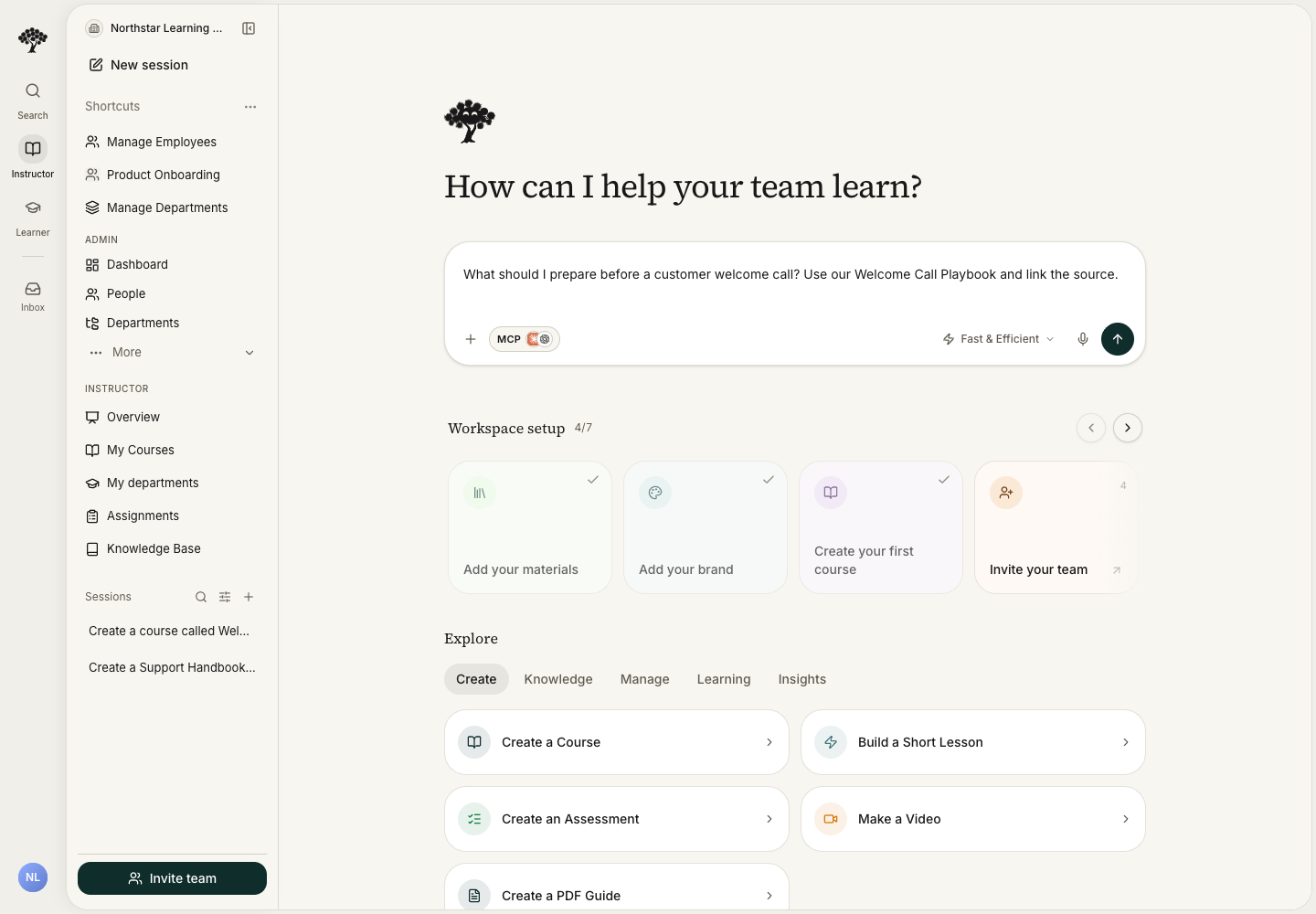
Choose Send message. The assistant introduces its next action before it uses tools. Watch the progress messages while it searches and reads the source. Expand Worked for… to inspect its tool activity.
3. Review the answer
The answer lists four preparation steps: research, set up the workspace, confirm attendees, and check blockers. Open the inline Welcome Call Playbook source link to check the details.
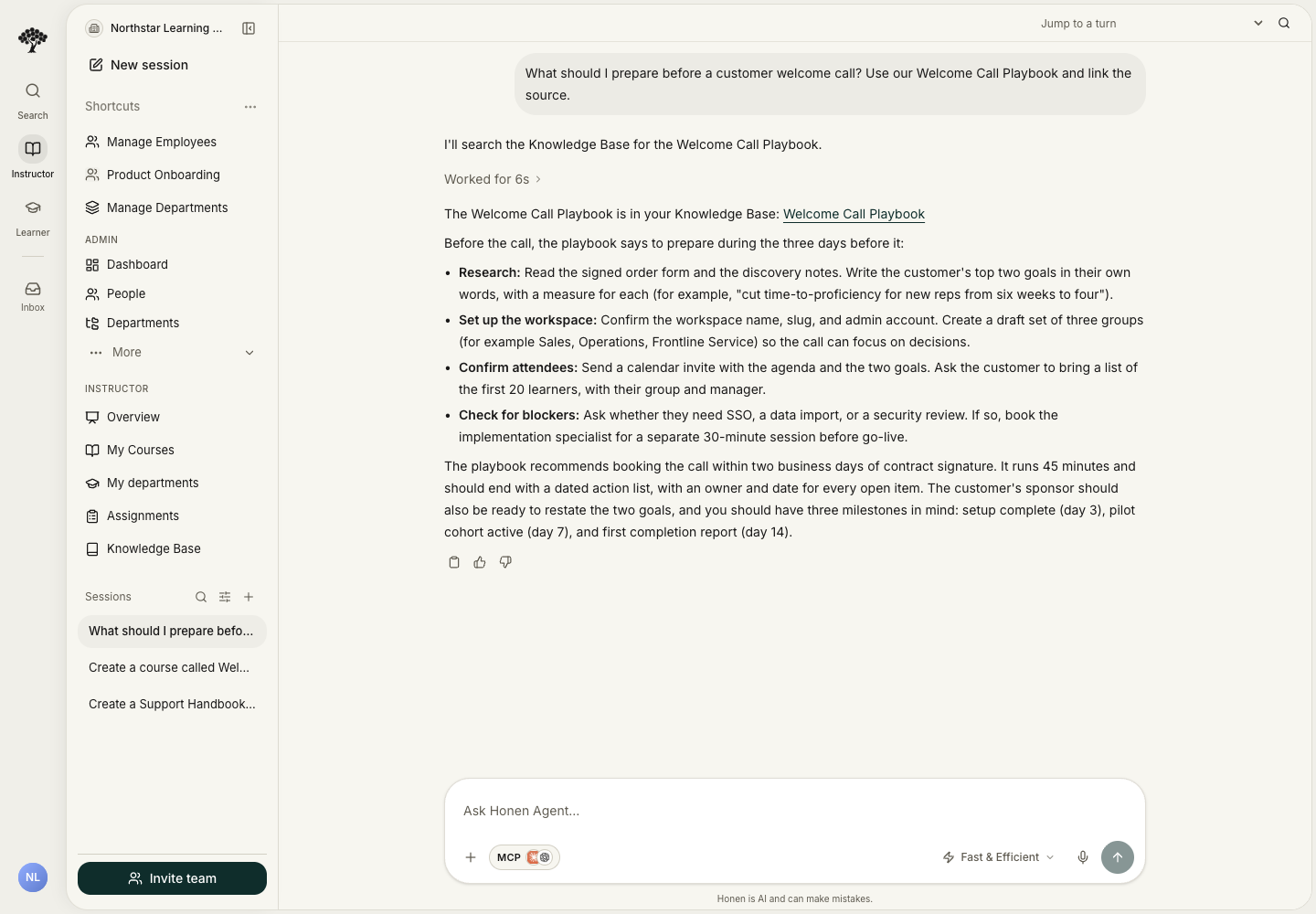
4. Open the source
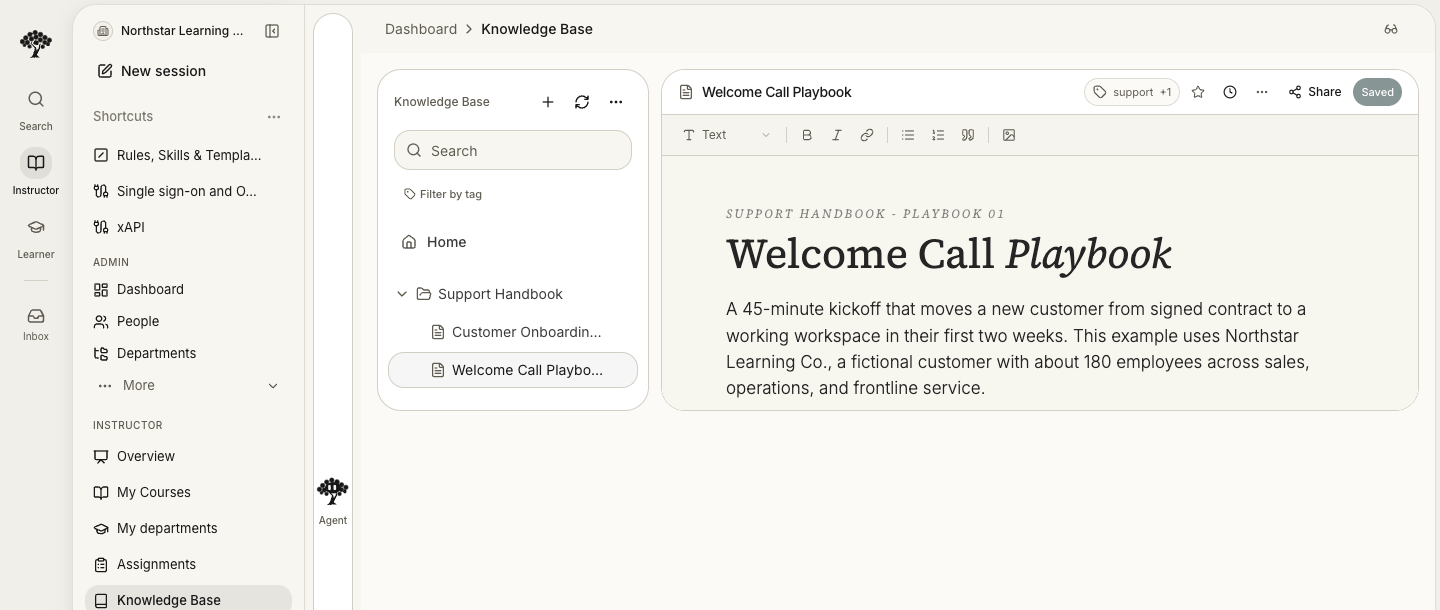
Open the cited Welcome Call Playbook. Compare the answer with its preparation steps. Check exact requirements, dates, and numbers.
Ask the agent to do a workspace task
State the action, exact items, and result you want. Use @ to select accessible sources, courses, or people. The agent can complete supported tasks within your permissions.
| Task | Example request | Check the result |
|---|---|---|
| Organize knowledge | “Create a Support Handbook folder at the Knowledge Base root. Add a Customer Onboarding Checklist document.” | Open the folder and document. Check their saved names and location. |
| Create a group | “Create a Support onboarding group for our next training cohort.” | Open the saved group. Check its name and parent group. |
| Prepare an assignment | “Assign Welcome Call Essentials to Support onboarding, due November 13, 2026.” | Check recipients and deadline before sending the request. Open the saved assignment and verify its requirements. |
| Review progress | “Show completion for Support onboarding this month. Identify unfinished assignments.” | Check the group, dates, and assignment records behind the answer. |
| Configure an Agent | “Create a draft onboarding Agent with read-only access to Support Handbook.” | Open its saved Access settings. Confirm the folder restriction and Draft status. |
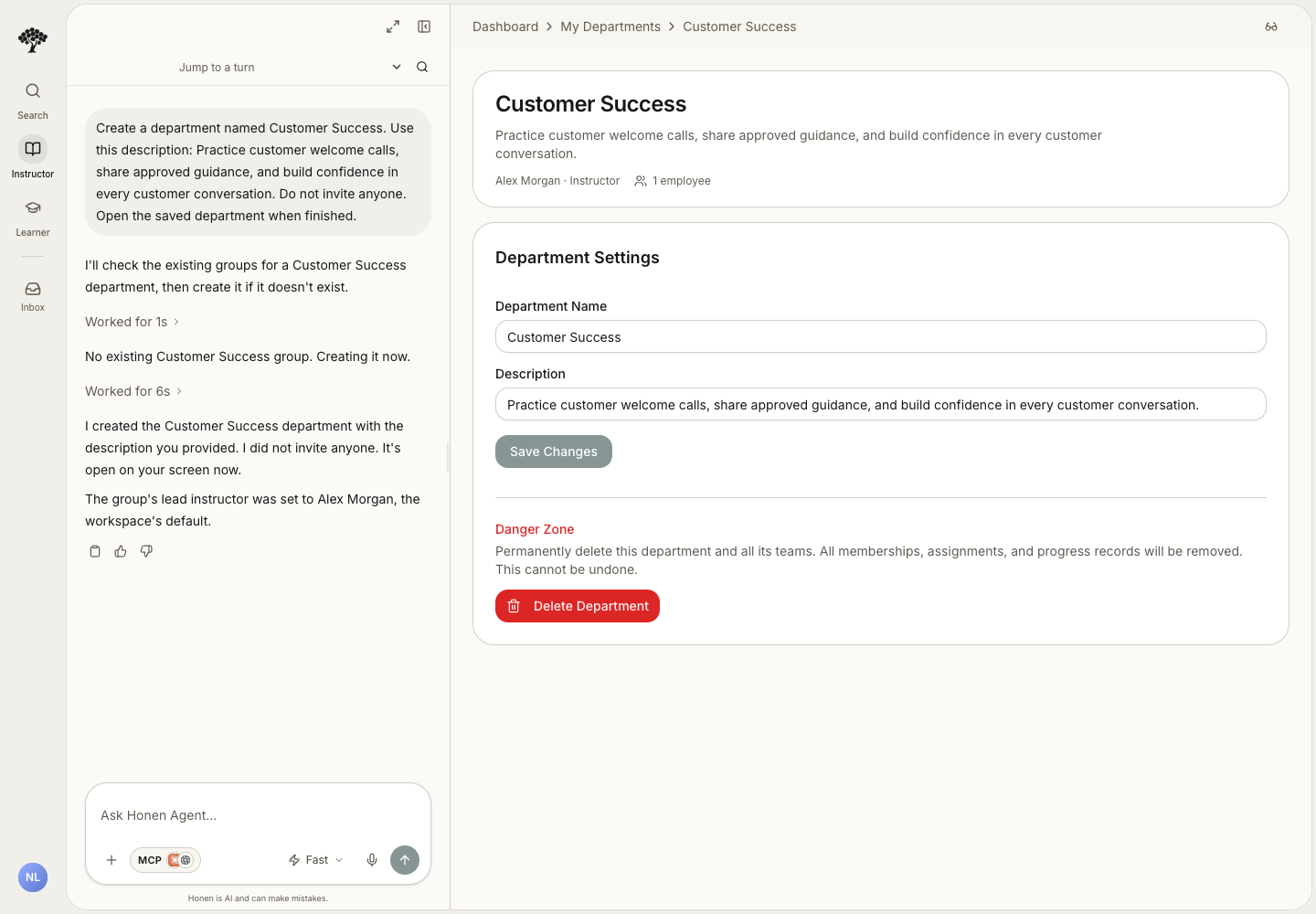
For invitations, provide the exact email addresses, roles, and groups. Review the recipients before the agent sends invitations. For assignments, check the course, recipients, requirements, and due date. A request for a report does not send messages or change learner assignments.
The relevant page opens beside the conversation when supported. Read the completion result and open the saved item. A progress message alone does not confirm success. If an action fails, review the reported issue before trying again.
Create a Word or PDF document
The Honen Agent can create a branded document from Knowledge Base sources you can access.
- Name the source documents and the intended audience in your request.
- Specify Word or PDF as the output format.
- Describe the required sections and any workspace brand requirements.
- Send the request.
- Open the generated file card to preview the document.
- Compare its facts, images, and requirements with the source.
- Ask for any changes in the same conversation.
- Download the reviewed file.
For example: “Create a two-page Word checklist from Customer onboarding. Use our workspace brand and include the three welcome-call tasks.” Check page breaks, tables, and image labels in the preview. A Word document's PDF preview lets you inspect its layout before download. The Assistant uses your current source permissions. A request for a document does not grant access to additional Knowledge Base content.
Continue the conversation
Ask a follow-up such as “Turn those preparation steps into a checklist in your answer.” If you want a content change or administrative action, say exactly what should change and review any confirmation the product presents. Name the action and its intended audience so the Assistant can prepare the right next step.
For a more focused answer, include the document title, folder, and section in your question. Open the citation to explore the original material, then ask a follow-up about the detail you need.
Create and edit courses
The dashboard suggestions cover courses, lessons, assessments, videos, documents, knowledge, people, learning plans, and insights. Each category has a built-in workflow guide. You can select a suggestion or type your own request. These guides use your existing permissions. They do not publish content or assign learners without your request.
Describe the course you want to Honen Agent. The course page opens beside the same conversation. Long outlines save in batches. Refreshing the page restores the saved outline and reconnects to the same run. Reopen the conversation to return to its saved work page. The task list shows confirmed progress. Steps that need your approval remain waiting. Review the complete outline and select Approve & Build before lessons are generated. Use the existing course, video, and simulation editors for manual changes. To preview a course as a learner, ask Honen Agent for a View as learner link, or select Distribute → View as learner in the course editor. The editor’s Preview tab stays in the authoring view.
Attach documents in the conversation or through Materials. Choose whether to save each upload batch in the Knowledge Base. Source references remain available to Honen Agent after a page refresh or course change. Name the destination course when you ask the assistant to reuse a source across courses.
See Create your first course and Add sources to a course.
The suggestions change with the page. Course lists offer creation prompts. The lesson editor offers help with explanations, examples, quizzes, and lesson length. Materials, video, simulation, and settings pages each show related prompts.
Create a single activity
Ask for one lesson, flashcard deck, podcast, comic, or practice activity. The agent opens an empty editor and writes the requested content directly. A single activity does not need a course outline or bulk build. A small loading state appears while the agent prepares the first content. You can continue editing the same item after a refresh.
Create a standalone video
Ask for one video, such as “Make a short video on spotting phishing emails.” Include the audience, length, and source documents when needed. The agent opens an editable Video Studio draft beside the conversation and saves your brief. You do not need to approve a course outline for a standalone video.
The empty draft is not a finished video. Generation adds narration and visuals to its timeline. Review the playback before you distribute the result. Use the saved video reference in chat to reopen the editor after a refresh. Ask for changes to a specific section, clip, caption, or graphic in the same conversation.
Follow a longer task
For work with several stages, such as creating a course, a checklist appears below Working…. The current step stays prominent as completed steps recede. Waiting or failed steps remain visible; the assistant explains what is needed in the conversation.
The checklist is saved with that turn. You can leave the page and reopen the session while the background work continues. When every step is complete, it folds into a checkmark and title. Select the title to view the completed steps. Simple questions and small edits do not need a checklist.
When a tool changes a dashboard field, the cursor shows each change in order. Text appears as the cursor reaches the field. Controls show their saved state at the cursor’s press. You can select a field to stop the animation and use the saved values immediately.
Search text and unsent replies stay in place when a result panel refreshes.
Simulation and video subagents can continue while you use the main conversation. When a subagent finishes, its result returns to the parent conversation automatically. If the assistant is replying, the result waits until that reply ends. If the conversation is idle, the assistant starts a follow-up reply. You do not need to keep the page open. Reopen the session to see the saved result.