
Give your team a repeatable way to create learning. Templates define the starting format, Rules apply standing requirements, and Skills make useful prompts available on demand. Manage them in Organization → Rules, Skills & Templates.
Choose your starting point
| Control | What it does | Example |
|---|---|---|
| Template | Packages setup questions, structure, instructions, Skills, and source folders for a Course, Atom, or Assessment | A first-week onboarding course |
| Rule | Applies an enabled standing instruction on selected AI surfaces | Use numbered steps and a concrete success check |
| Skill | Runs a reusable prompt when someone invokes it | Turn a learning goal into a checklist |
Management permissions for Rules, Skills, and Templates are separate, so your organization can delegate each responsibility.
Start with a template
- Open Honen Agent and find Templates above Explore.
- Select a template card. The selection applies immediately in the message box.
- Complete its blanks and dropdowns. If it has no input starter, enter the subject and other required details.
- Select Send and answer the template's setup questions.
- For a full Course, review the outline and select Approve & Build. Focused Atoms can open directly in their editor.
- Preview and edit the completed draft.
- Open Settings → General → Course template to check the saved selection.
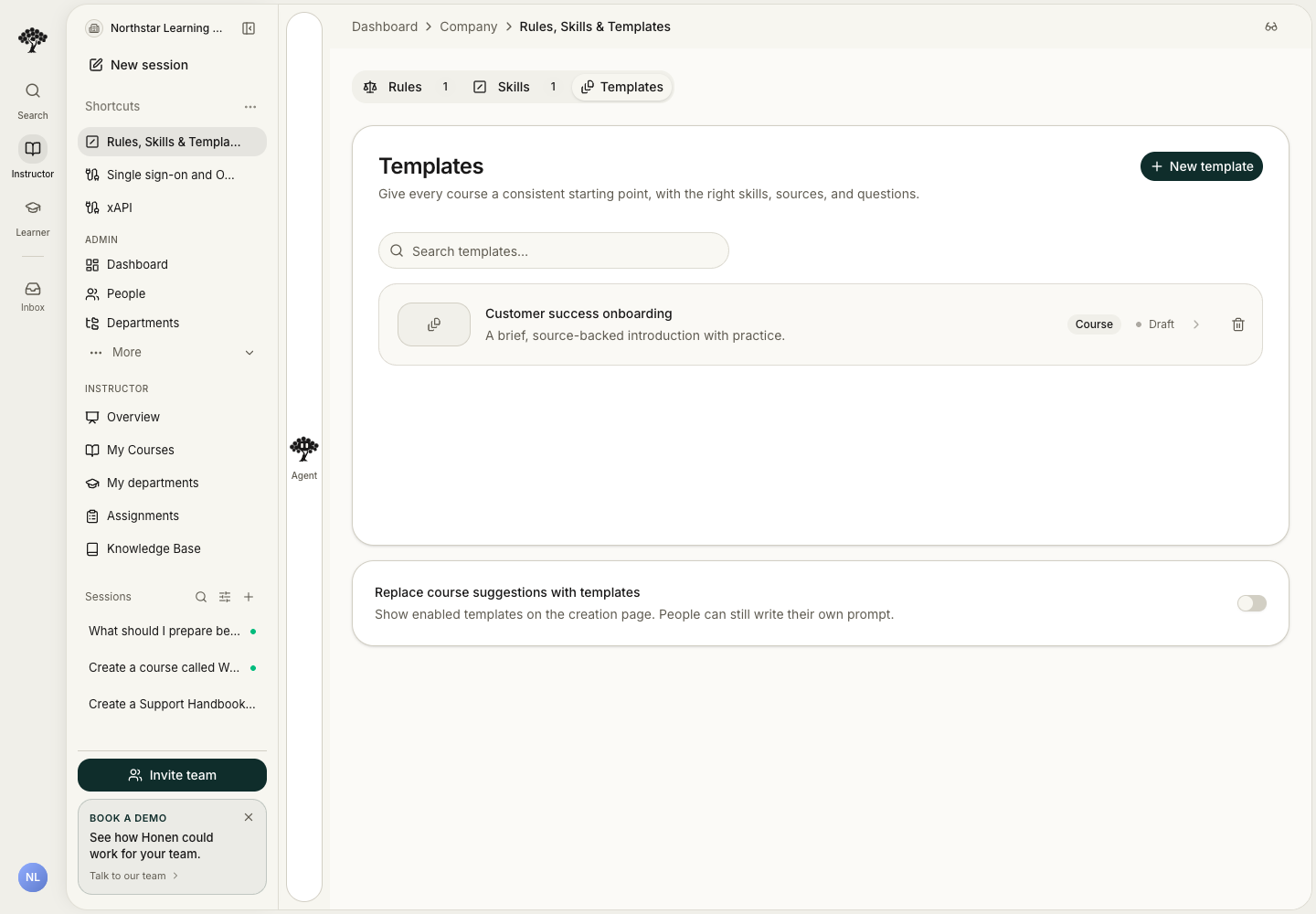
A selected template sets the content type and carries its instructions, setup questions, structure, Skills, and source folders into creation. The course keeps its saved template for future editing. Sending remains unavailable until you complete or remove the starter's required fields. Use Clear template to remove the selection before sending.
If the template cards are hidden, an administrator can enable Show templates in course creation on the Templates page.
For the full setup, including starter fields, custom questions, activity choices, source folders, covers, and template lifecycle, see Create and manage templates.
Apply reusable guidance
Create a Rule when an instruction should apply every time on chosen surfaces. Create a Skill when an author should choose when to run a task. New Skills start restricted; share them with the intended people or groups.
Use Brand standards for generated visuals and Tutor guardrails for learner-facing coaching behavior.
Use a template on an existing course
Open Settings → General → Course template in the course editor. Attach or change a template to guide future editing, then ask the assistant for the changes you want. Selecting a template keeps the existing content.
You can ask the Workspace Assistant to find a template or prepare one for your team. Review its saved instructions before reusing it.
A course retains its saved template instructions if the original template is later removed or unavailable. Selected Skills and Knowledge Base folders retain their own access requirements.
Continue with Governance to connect authoring standards, source ownership, and publishing approvals.