
A guided chat teaches a topic as a conversation with the course tutor. The tutor explains one idea at a time, asks you to think, and checks each learning objective with you.
Start a guided chat
- Open a topic.
- Select Guided chat on the topic start screen, or choose it from the activity menu at the top.
- Read the tutor's first message and select Start.
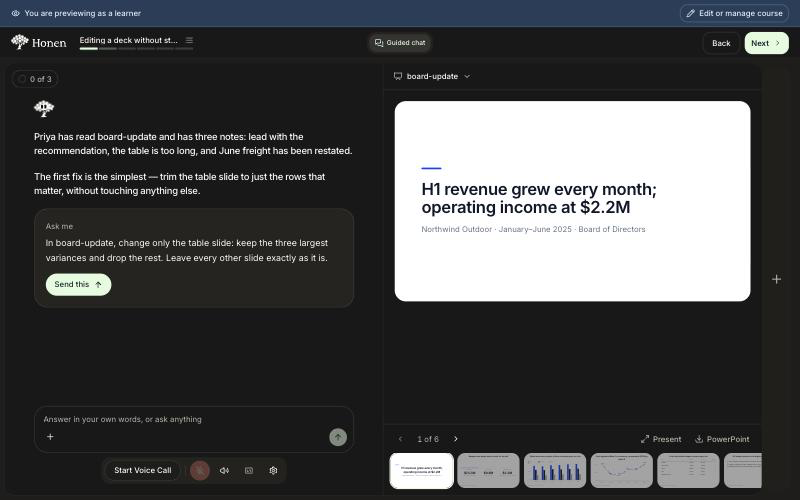
Answer and move on
- Select a button under the tutor's message to answer or continue.
- Type in the box at the bottom to answer in your own words or to ask a question.
- Select + to attach a file.
The objectives button at the top left shows how many objectives you have completed. Select it to see the list.
Your conversation is saved. When you come back to the topic, it opens where you stopped. The guided chat completes when every objective is covered. It completes separately from the reading.
Work with the tutor on the Computer
Some guided chats include a Computer. It is your own workspace for the lesson. The tutor makes files there while you direct the work.
- Read the Ask me card. It shows a request you can make.
- Select Send this, or type your own version of the request.
- Watch the file open beside the conversation.
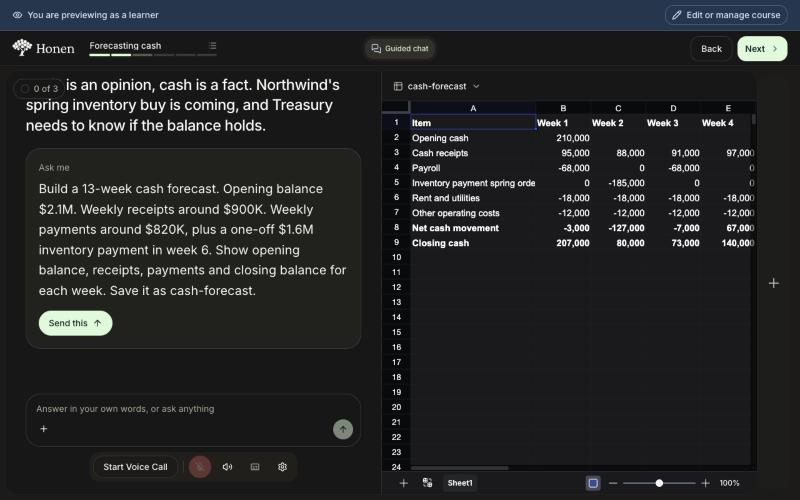
The tutor can make and change these files:
| File | What you can do |
|---|---|
| Spreadsheet | Read it and edit cells yourself. Select a cell to see its formula. |
| Document | Read the text the tutor wrote. |
| Slides | Move through the deck with the arrows or the thumbnails. Select Present for full screen, or PowerPoint to download the deck as a .pptx file. |
| App | Use it like any app. It runs on your own machine in the Computer. Select Reload to load it again, or Open in a new tab to use it full size. Its code is in the file list. |
| Code and other files | Read the file. The tutor can run code and show you what it printed. |
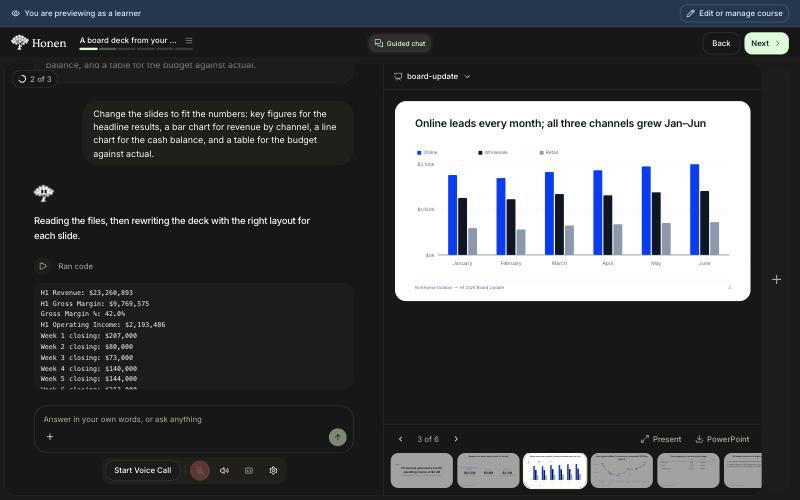
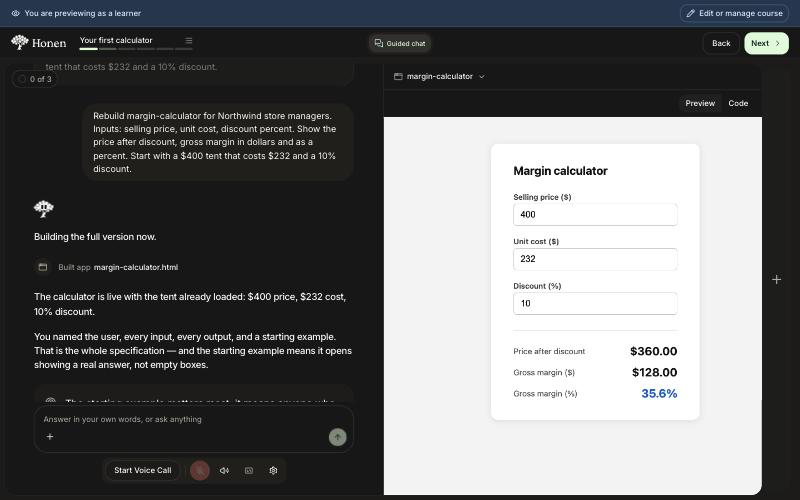
Select the file name at the top of the Computer to open a different file. On a phone, select Computer at the top right to open your files.
Use your own files
Some lessons ask for a file of your own. Select Add a file, or select Use a sample to carry on with one the tutor makes.
You can also add a file at any time: drag it onto the conversation, or select the attach button, then send. The file appears in your Computer under its own name, and a CSV also opens as a spreadsheet.
You can add CSV, TSV, text, Markdown, or JSON files up to 400 KB. Leave out anything confidential.
If you change a spreadsheet yourself, your changes are saved. The tutor sees them the next time it works on that file.
In some courses, one Computer follows you through every guided chat. Files you made in an earlier topic are still there.
Use a connected tool
A guided chat can use a tool your organization has connected, such as a drawing or data tool.
- The tutor shows what it wants to run.
- Select Run it to allow that one action, or Not now to skip it.
- If the tool has its own screen, it opens beside the conversation.
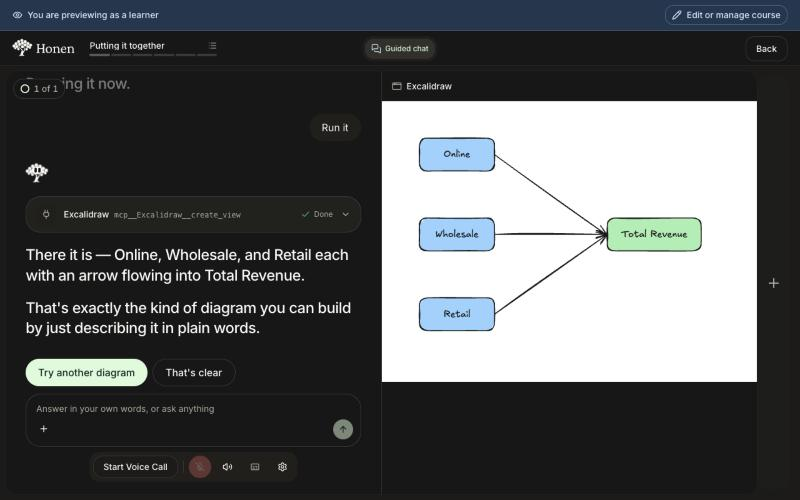
A tool never runs without your approval.
Start a voice call
Select Start Voice Call under the message box to talk with the tutor. The call continues when you move to another activity or topic.